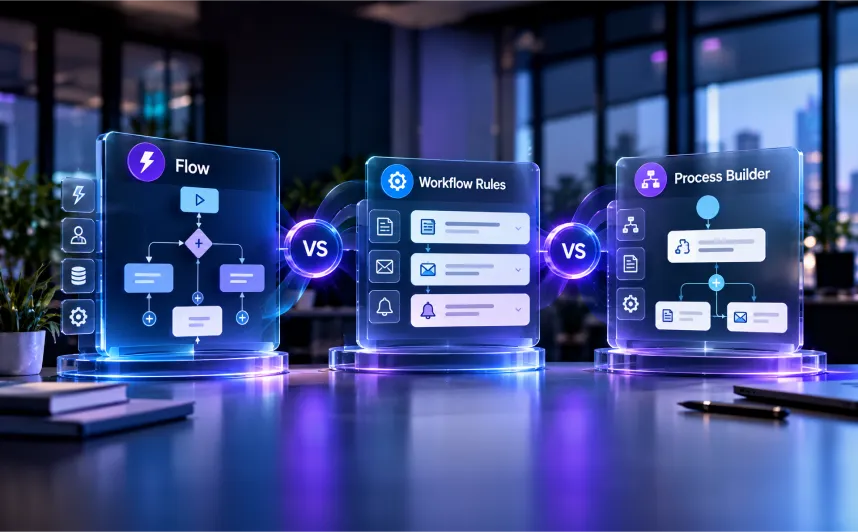

If your Salesforce org still runs Workflow Rules or Process Builder, those rules and processes keep firing whenever a record meets their criteria. Since December 31, 2025, Salesforce no longer fixes bugs in those automations or answers support cases about them.
So the Flow vs Workflow Rules vs Process Builder question has a short answer in 2026: build everything new in Flow, and plan the move for whatever Workflow Rules and processes are left. Salesforce’s end-of-support notice recommends moving them to Flow promptly with its built-in migration tool.
Here’s where things stand in 2026:
- Of the 3 Salesforce automation tools, only Flow still gets new features and Salesforce support.
- After the Workflow Rules and Process Builder end of support, Salesforce still hasn’t set a date to switch running automation off.
- A before-save record-triggered flow can update a record 10 times faster than a Process Builder process, and 1 rule built in all 3 tools shows why.
- Salesforce’s own architects suggest Flow for objects with fewer than 15 automations, and more Apex code as that count or data volume grows.
- The Migrate to Flow tool converts many rules and processes for you, Salesforce documents what it skips, and a short checklist per object covers testing and go-live.
- The 2026 releases added Flow Logs, Test Mode (Beta) and automatic retries when a record is locked as a save starts.
- Migration trouble usually comes from 4 places: tangled automation, long backlogs, stale data and difficult-to-trace errors.
- Flow comes with your Salesforce edition, and your edition decides how many active flows you can run.
Table of Contents
- Salesforce Automation Tools Explained: What Each One Actually Does
- Workflow Rules and Process Builder End of Support: What Changed on December 31, 2025
- Why Salesforce Moved Record Automation to Flow
- Flow vs Workflow Rules vs Process Builder: Side-by-Side Comparison
- The Same Business Rule Built in Each Tool
- Choosing the Right Tool in 2026: Flow, Apex, Approvals, Orchestration or Agentforce
- What Changed in Flow During 2026: The HyphenX Release Tracker
- How to Use the Migrate to Flow Tool, Step by Step
- What Migrate to Flow Can’t Convert: The HyphenX Coverage Matrix
- Your Migration and Go-Live Checklist
- Common Challenges & Solutions When Moving to Flow
- What Flow Costs in 2026 and Where Your Edition Caps It
- Explore HyphenX Case Studies
- 250+ Certified Salesforce Professionals Behind Your Migration
- Frequently Asked Questions
Salesforce Automation Tools Explained: What Each One Actually Does
Workflow Rules and Process Builder are older tools that still run in orgs that haven’t finished migrating. Flow is the only one Salesforce still builds on and supports.
Workflow Rules
- What it did: Simple “if this, then that” rules on 1 object. When a record met your criteria, the rule could update a field, send an email alert, send an outbound message to another system, create a task or schedule an action for later.
- Status in 2026: Legacy. Existing rules still run and stay editable, and you can’t create new ones.
- Typical use: Setting a field value or sending an email alert the moment a record meets a set of criteria.
Process Builder
- What it did: A visual builder for “if this, then that” logic with several branches. A process could start when a record changed or when an event message arrived, or it could run when another process called it.
- Status in 2026: Legacy. Existing processes still run and stay editable, and only Developer Edition orgs can still create new ones.
- Typical use: Branching logic plus actions Workflow Rules couldn’t take, such as creating records beyond tasks, calling Apex code or submitting records for approval.
Salesforce Flow
- What it does: A single builder for automation that runs when a record changes, on a schedule, behind a screen your users click through, or when another flow or Apex code calls it. In February 2026, Salesforce Engineering reported that Flow supports more than 63 flow types and handles more than 461 billion runs a month.
- Status in 2026: Actively developed, with new Flow Builder and testing features in each 2026 release.
- Typical use: Most new automation, including record updates, approvals, guided screens and scheduled jobs.
Workflow Rules and Process Builder End of Support: What Changed on December 31, 2025
Salesforce wound both tools down in 6 steps between 2021 and 2025, and the latest step ended support on December 31, 2025.
Date or release | What Salesforce changed | What it means for your org |
|---|---|---|
October 2021 (Dreamforce ’21) | Stopped active development of both tools to focus on Flow | No new features for either tool |
Spring ’22 | Released the Migrate to Flow tool for Workflow Rules | First built-in way to move rules to Flow |
Winter ’23 | Blocked the creation of new Workflow Rules | Existing rules stay editable |
Spring ’23 | Added record-triggered processes to the migration tool and lifted the old limit of 2,000 elements per flow run | Process Builder migration starts |
Summer ’23 | Blocked new processes and “clone as new process” | Developer Edition orgs aren’t affected |
December 31, 2025 | Ended support and bug fixes for both tools | Automation still runs, and breakages are yours to fix |
October 2026 | No date set for switching off running automation | Set your own migration deadline now |
Some workflow-era features have no retirement date. In its 2021 announcement, Salesforce said it had “no plans to retire email alerts or any other workflow actions,” and its Help pages now call the old approvals “Classic Approval Processes” without announcing a retirement.
Why Salesforce Moved Record Automation to Flow
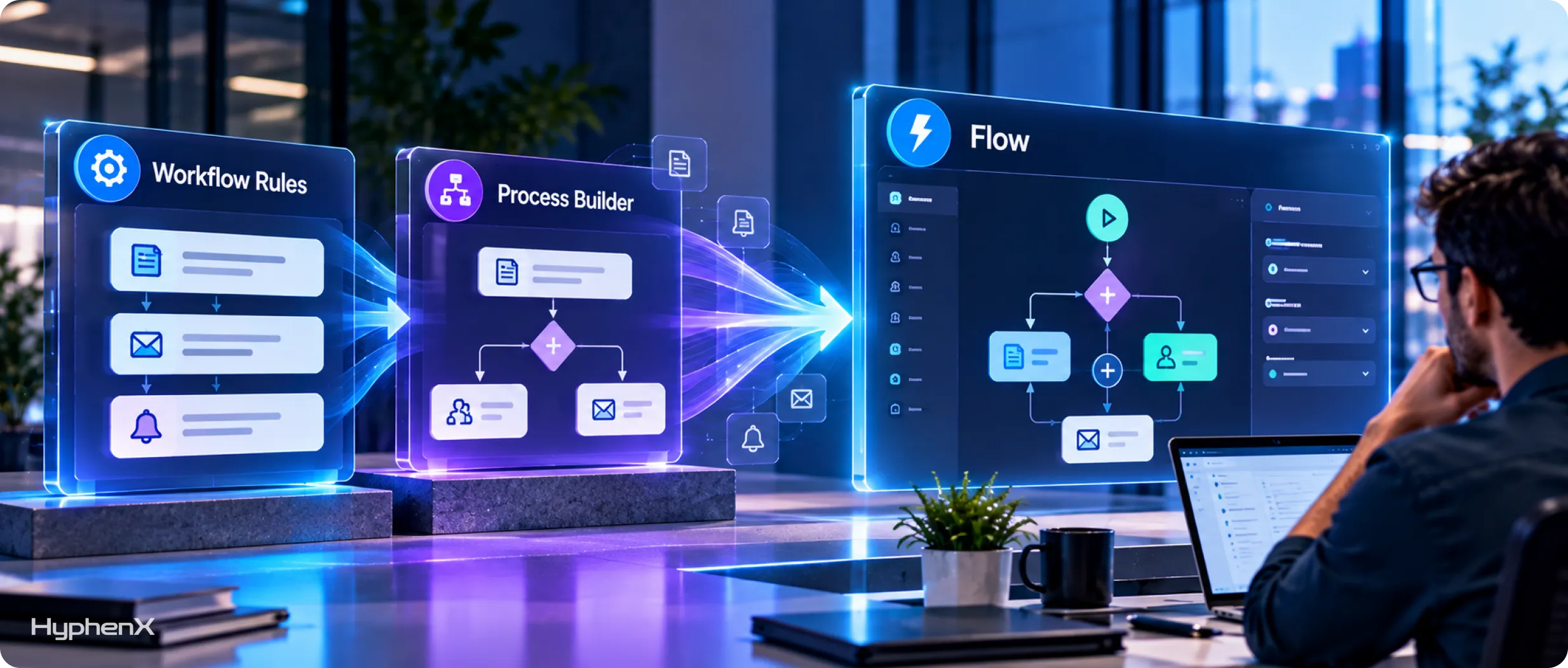
Salesforce said in 2021 that automation spread across several toolsets “hampers both maintenance and innovation.” Its answer was a single builder for every kind of record automation, and 2 Flow features show why it fits that job.
- Easier upkeep: Every record-triggered flow on an object shows up in Flow Trigger Explorer, in the order those flows run, so you can see and reorder them from 1 screen, which neither Workflow Rules nor Process Builder offered.
- Speed: Salesforce Help on record-triggered flows says a record-triggered flow “can update a Salesforce record 10 times faster than a record-change process.” A before-save flow makes its change ahead of the first save, so the record saves once. A workflow field update or a process’s record update saves it again and runs that object’s Apex triggers (code that runs on save) a second time.
Flow vs Workflow Rules vs Process Builder: Side-by-Side Comparison
Here’s how the 3 tools compare on the jobs you’re most likely to automate.
What you need | Workflow Rules | Process Builder | Flow |
|---|---|---|---|
Build new automation in 2026 | No | Only in Developer Edition orgs | Yes |
Update a field on the same record | Saves the record a second time | Saves the record a second time | Before-save flow, with a single save |
Actions that wait for a later time | Time-dependent actions | Scheduled actions | Scheduled paths |
Create related records | Tasks only | Yes | Yes |
Call Apex code | Not available | Apex action | Action element that calls Apex |
Send records for approval | Not available | Submit for Approval action | Flow Approval Processes |
Screens for users and scheduled jobs | Not available | Not available | Screen flows and scheduled flows |
When it runs in Salesforce’s 20-step save sequence | Step 11 of 20 | Step 13, in no set order among processes | Step 3 (before-save) or step 14 (after-save) |
Control over run order | None | None | Trigger order settings and Flow Trigger Explorer |
Verdict: Flow matches or beats both older tools on every row, so it’s the default home for the rules you rebuild.
Flow runs inside Salesforce’s per-transaction limits, the caps on how much work 1 save and everything it triggers can do: 100 database queries, 50,000 records retrieved, 150 create, update or delete operations, 10,000 records changed and 10,000 milliseconds of processing time. Check Flow’s per-transaction limits before you move heavy logic or big data loads into Flow.
The Same Business Rule Built in Each Tool
Here’s a common Opportunity rule built in each tool: when Stage changes to Closed Won, set Handoff Status to “Ready for Onboarding” and email the account team. Handoff Status is an example custom field.
Build 1: Workflow Rule (Legacy, for Reference)
Object: Opportunity
When to check: when a record is created, and any time it’s edited to meet the criteria
Criteria: Stage equals Closed Won
Action 1: Field Update, set Handoff Status to Ready for Onboarding
Action 2: Email Alert, send the Closed Won notice to the account team
What happens: the field update saves the record a second time
Build 2: Process Builder Process (Legacy, for Reference)
Starts when: an Opportunity record changes
Criteria: Stage equals Closed Won
Run only when the specified change is made: Yes
Action 1: Update Records, set Handoff Status to Ready for Onboarding
Action 2: Email Alert, send the Closed Won notice
What happens: runs at step 13, in no set order with other processes
Build 3: A Before-Save and an After-Save Record-Triggered Flow
Flow A: before-save flow on Opportunity (Fast Field Updates)
Runs when: a record is created or updated so that Stage equals Closed Won
Step: Assignment, set Handoff Status to Ready for Onboarding
Saving: automatic, with no Update Records step needed
Flow B: after-save flow on Opportunity (Actions and Related Records)
Runs when: a record is created or updated so that Stage equals Closed Won
Step: Email Alert, send the Closed Won notice
If it fails: a fault path records the error and alerts an admin
This build uses 2 flows because a before-save flow can only use a few simple steps (Assignment, Decision, Get Records and Loop), so the email has to run after the save.
The email stays an email alert, so your existing alert and its template carry over. You can see where each piece runs in Salesforce’s order of execution, the fixed sequence Salesforce follows every time it saves a record.
Choosing the Right Tool in 2026: Flow, Apex, Approvals, Orchestration or Agentforce
Use Flow for most record automation in 2026 and Apex code for heavy data work. The other Salesforce automation tools each cover a specific job.
- If you update fields on the same record: Use a before-save record-triggered flow like Flow A in Build 3, and put emails and related records in an after-save flow.
- If you handle very large data loads (2,000 to 10,000+ records) or need full control over undoing changes: Use Apex code, which also gives you custom error messages and more complex data handling.
- If an object carries many automations: Salesforce’s architects suggest record-triggered flows below 15 automations, Flow plus small pieces of Apex at 15-30, and Apex triggers above 30. The thresholds come from Salesforce’s record-triggered automation decision guide, and our Flow vs Apex decision framework covers the Apex side in depth.
- If you route records for approval: Build new approvals as Flow Approval Processes, unless the person submitting needs to manually choose the next approver, which Flow approvals can’t do. As of Winter ’27, the Request Approvals component can show up to 10 flow approval processes on 1 record page.
- If users need a guided form or wizard: Use a screen flow, which can open from a record page, a list view or a direct link.
- If you coordinate multi-step work across flows and people: Use Orchestration, a dedicated flow type that links several flows and assigns any step that needs a person to the right user.
- If an AI agent should run the work: Give the agent an autolaunched flow (one that runs without a screen) or an Apex action as a custom agent action in Agentforce (see our Agentforce services). The agentic vs traditional automation guidance calls it a mistake to hand an agent work you can fully map in advance, so run that predictable work straight from a flow or Apex trigger.
What Changed in Flow During 2026: The HyphenX Release Tracker
Salesforce’s 2026 releases changed how you build and test flows. We tracked the changes that matter most if you’re moving off the older tools.
Method: we went through Salesforce’s admin release posts for Spring ’26, Summer ’26 and Winter ’27 and dropped items that don’t touch record automation. Status labels follow Salesforce’s wording, and “Released” means Salesforce gave the item no GA (generally available) or Beta label.
Release | Change | Status | Why it matters as you move to Flow |
|---|---|---|---|
Spring ’26 | Agentforce for Flow drafts flows from plain-language prompts | GA | Rapid first drafts of rebuilt logic to review before go-live |
Spring ’26 | Flow Logs tab in the Automation Lightning App | Released | A single place to watch new flows after go-live |
Spring ’26 | Flow tests tied to a specific flow version | Released | Tests stay matched to the version you migrated |
Spring ’26 | Debugging for Flow Approval Processes and orchestrations inside Flow Builder | Released | Test new approvals before you replace classic ones |
Spring ’26 | Request Approval component for record pages | Released | Users ask for a flow approval right from the record, without a classic Submit for Approval button |
Spring ’26 | Screen flows opened from a direct link | GA | Share 1 link that opens a guided screen for users |
Summer ’26 | Visual comparison of flow versions | Released | See exactly what changed between the migrated version and your later edits |
Summer ’26 | Built-in date operators in Decision elements | Released | Simpler rebuilds of date criteria the migration tool can’t convert |
Summer ’26 | Unanimous approval option for group approval steps | Released | Group approvals can require every approver to agree before a record moves on |
Summer ’26 | Custom batch sizes for scheduled flows | Released | Control how many records a scheduled job handles at once |
Summer ’26 | Agentforce troubleshooting and auto-fix for flow errors | Beta | Faster triage of faults after go-live |
Winter ’27 | Flow Test Mode with saved test scenarios, expected results and stand-in outputs for actions and subflows | Beta | Rerun the same saved scenarios, with stand-in results, after every edit |
Winter ’27 | Automatic retry when a record is locked as a save starts, after a 10-second wait | Released | Fewer lock failures on busy objects |
Winter ’27 | Edit History panel and save-time warnings for missing required fields | Released | Restore past versions and catch errors before you switch a flow on |
Winter ’27 | Screen flows launched for many records simultaneously from list views and related lists | Released | Run 1 guided screen across many selected records |
Winter ’27 | Grouping of related elements on the flow canvas, rolling out across orgs | Released | Keep larger migrated flows readable as they grow |
Our take on Spring ’26 is in why Spring ’26 was a turning point for Flow reliability. For the latest release, see Salesforce’s roundup of Winter ’27 release features for admins.
How to Use the Migrate to Flow Tool, Step by Step
Salesforce’s migration tool turns a Workflow Rule or process into a flow that starts switched off, so you can test the conversion before users notice any change.
- List what’s left. Open the Workflow Rules and Process Builder lists in Setup and write down every active item by object. Then open Flow Trigger Explorer for each object to see which flows already run, and note any Apex triggers on the same object.
- Practice in a sandbox. Salesforce recommends trying every migration in a sandbox, a test copy of your org, before you run it in production.
- Start small. Pick the object with the fewest rules, so you learn the tool on minimal logic.
- Run the tool. Search Setup for Migrate to Flow, choose the rule or process, and convert that item. Processes become after-save flows, and rules that only update fields become before-save flows.
- Combine where it makes sense. Salesforce’s guide says migration “isn’t one-to-one,” so merge items that share the same starting conditions and keep unrelated jobs in separate flows.
- Test. Use Flow Tests with expected results, or Test Mode (Beta, switched on in Process Automation Settings) for record-triggered and autolaunched flows, then test a full batch of 200 records at once.
- Configure the run order. Give each flow a trigger order value from 1 to 2,000 with gaps (10, 20, 30). Values 1-1,000 run first, flows with no value run next by activation date, and 1,001-2,000 run last. Our post on what breaks first in a hyper-automated Salesforce org shows what happens when run order is left to chance.
- Switch it on. In the org where you ran the tool, activating the new flow turns off the legacy rule or process, and a rule’s waiting time-based actions move to scheduled paths when each record next changes. A flow deployed from another org counts as new, so you switch off the original yourself and its waiting actions stay behind.
Salesforce’s migration best practices go deeper on the planning steps. For rules with waiting time-based actions, run the migration tool in production so those actions carry over (step 8), and move everything else from your sandbox through a tracked release process like the one in our DevOps Center setup and deployment guide.
What Migrate to Flow Can’t Convert: The HyphenX Coverage Matrix
The migration tool converts the common cases and skips a long list of edge cases you’ll rebuild manually. We mapped each documented case into 1 table, using Salesforce’s migration tool considerations page as checked in October 2026.
What’s in your rule or process | Tool | Status | What to do |
|---|---|---|---|
Create or update records, call a flow, call Apex, send email alerts | Process Builder | Converts | Test, then activate |
Chatter posts, quick actions, Submit for Approval, custom notifications, Live Message notifications, surveys, Quip actions | Process Builder | Converts, needs setup | Finish the setup in Flow Builder |
Scheduled actions | Process Builder | Converts with 1 criteria row only | Check the new scheduled paths |
Processes that run themselves again (recursion) | Process Builder | Partial | The record is checked once, so retest that logic |
Custom event processes and processes started by another process | Process Builder | Not supported | Rebuild manually |
Custom metadata types, criteria on related records, formulas that reach into other objects | Process Builder | Not supported | Rebuild the criteria with Decision elements |
Field criteria, field updates, email alerts, outbound messages, time-based actions, true-or-false formulas, blank and not-blank checks | Workflow Rules | Converts | Test, then activate |
Tasks | Workflow Rules | Not supported | Add a Create Records element |
“Does not contain” condition | Workflow Rules | Not supported | Use custom condition logic |
Includes, excludes and within conditions; greater or less than on picklists; record types; global variables; related-record fields | Workflow Rules | Not supported | Move the check into a Decision element |
Formulas with time or record functions (HOUR, MINUTE, SECOND, TIMENOW, TIMEVALUE, ISCLONE, $RecordType) | Workflow Rules | Not supported | Rebuild the criteria in Flow |
Relative dates, multiple currencies, rules with no actions | Workflow Rules | Not supported | Rebuild, or retire the rule after review |
Count how many of your items land on Not supported rows before you plan the timeline. If that’s most of your inventory, plan a Salesforce workflow automation redesign in Flow Builder.
Your Migration and Go-Live Checklist
Run this checklist once per object, and clear the first 2 lists before the next object starts.
Before You Migrate
- Active flow count checked against your edition’s cap
- Each item marked with its status from the coverage matrix above
- Every item with waiting time-based actions flagged
- Email alert templates and recipients listed for each rule you’ll move
- Business owner named for each rule and process you’ll migrate
Before You Switch On
- Each new flow’s description names the rule or process it replaces
- Submit for Approval and other needs-setup actions configured in Flow Builder
- Test results saved against the exact flow version you’ll activate
- Legacy rule or process kept available so you can reactivate it if needed
- Sandbox results signed off by the object’s business owner
After Go-Live
- The legacy rule or process shows as inactive
- Users told what changed and who to contact if something looks wrong
- Waiting actions confirmed on the new scheduled paths
- Run order in Flow Trigger Explorer matches your plan
- Old flow versions cleaned up so you stay within 50 versions per flow
Common Challenges & Solutions When Moving to Flow
These 4 problems come up again and again when teams move to Flow.
Legacy Rules, Processes and Flows All Running on the Same Object
- The challenge: Many orgs have Workflow Rules, processes, flows and sometimes Apex triggers firing on the same object, so it’s difficult to tell which tool changed a field or sent an email. Salesforce’s architects recommend 1 main tool per object, Flow or Apex triggers, and treat a mix of the 2 as a trade-off to resolve.
- HyphenX’s approach: We start with discovery and business process mapping, so every automation on the object is tied to the business rule behind it. Then we choose Flow or Apex as that main tool, and where Flow wins, we split the logic into a few focused flows, since the architects warn against 1 giant flow per object.
A Long Migration Backlog and No Time to Work Through It
- The challenge: Admin teams already carry a full queue of requests, so legacy rules sit untouched while each one keeps running without Salesforce support.
- HyphenX’s approach: We take the migration off your team’s plate from design through rollout, working object by object, while your admins review and approve each object before the next one starts.
Field Values Going Stale When Legacy Rules Quietly Break
- The challenge: Salesforce no longer fixes bugs in legacy automation, so when a rule or process breaks, the fields it updates can quietly go stale.
- HyphenX’s approach: We rebuild those field updates in Flow with clear starting conditions and add validation wherever data keeps drifting, so records stay current after the legacy rules are switched off.
Errors After Go-Live That Are Difficult to Trace
- The challenge: Without error handling, a failed flow shows users “An unhandled fault has occurred while processing the flow,” and they must restart with little detail on what went wrong.
- HyphenX’s approach: We add fault paths to every step that reads or changes data or calls an action, so each failure sends an admin the error message. After go-live, our Salesforce managed services team monitors with tools like Flow Logs and refines each flow as real usage shows gaps.
What Flow Costs in 2026 and Where Your Edition Caps It
Flow comes with your Salesforce edition, so your real costs in 2026 come from 2 places: the limits your edition sets and the effort to migrate.
What’s Already Included
- Flow Builder: Part of every edition from Essentials up.
- Orchestration: A paid add-on until February 18, 2026, and now a standard flow type.
- Approvals: Classic and Flow Approval Processes don’t use up automation credits or orchestration runs, the usage allowances Salesforce meters for some automation.
Where Your Edition Sets the Ceiling
- Active flows per flow type: 5 on Essentials and Professional; 2,000 on Enterprise, Unlimited, Performance and Developer.
- Total flows per flow type: 5 on Essentials and Professional; 4,000 on the other 4 editions.
- Scheduled flow runs: 250,000 per 24 hours, or user licenses × 200, whichever is greater.
- Raising a limit: Higher editions cost more per license, so compare Salesforce’s pricing page with your contract.
Example: What Makes a Migration Lighter or Heavier
Effort driver | Lighter migration | Heavier migration |
|---|---|---|
Inventory | A few active rules on each object | Many rules and processes stacked on busy objects |
Rebuild share | Most items show Converts in the coverage matrix | Many items show Not supported |
Consolidation | Each old item maps to its own flow | Several legacy items merge into each new flow |
Connected systems | No outbound messages to other systems | Several integrations that rely on outbound messages |
Testing | Simple field updates and email alerts | Approvals, scheduled actions and connected systems |
Salesforce doesn’t publish a migration cost figure, so use this table to size your own job. A lighter migration often fits inside normal admin time, and a heavier one usually needs a planned project with its own testing window.
Explore HyphenX Case Studies
These 2 case studies show how we scope automation work: 1 delivered Salesforce build and 1 ERP blueprint for a manufacturer.
B2B SaaS Sales Team: From Swivel-Chair Prospecting to Single-Click Pipeline
A B2B SaaS company ran outbound sales on Salesforce Sales Cloud with 3 prospecting tools (Apollo, Lusha and Hunter), and none of them connected to Salesforce, so reps copied every contact in by hand. We connected the 3 tools to Salesforce so contact data comes from the best source first, added a single click to find and insert a contact on Lead, Contact and Account records, and verified every email through Hunter before it was saved. Every new lead is now scored and routed as it’s created, and Agentforce handles account research.
Key takeaway: Start with the manual steps between your tools and Salesforce, and check data before it’s saved.
Read the full case study: From Swivel-Chair Prospecting to Single-Click Pipeline
Garula Industries: ERP Implementation for Fan Component Manufacturing
Garula Industries makes injection-molded fan components, including canopies, caps and housings, for clients such as Finolex, Maric Enterprises and Amtech Industries. Its 2-shift plant ran on paper registers, handover books and spreadsheets, so shift data never came together in 1 place. We mapped a modular ERP blueprint around the plant’s own operating sequence, with digital shift handovers, quality checkpoints, low-stock alerts and order checks before dispatch that target around a 90% cut in dispatch errors.
Key takeaway: Map how work actually moves before you automate it. As the case study puts it, “The data exists. The gap is in how it flows, connects, and translates into action.”
Read the full case study: Garula Industries ERP Case Study
Explore more case studies: HyphenX case study library
250+ Certified Salesforce Professionals Behind Your Migration
HyphenX is powered by 250+ certified Salesforce professionals, including architects, developers and consultants.
- 100+ Salesforce multi-cloud implementations delivered across global teams
- 30,000+ users actively supported on the Salesforce platform
- 250+ Salesforce certifications held across delivery and consulting roles
- 4.9 out of 5 average customer satisfaction, based on client feedback
- Teams in Lewes, Delaware (headquarters) and Jaipur, Rajasthan (global capability center)
Our workflow automation projects follow this delivery sequence: discovery and business process mapping, solution design, configuration and development, sandbox testing, deployment with user enablement, then monitoring and ongoing support.
Frequently Asked Questions
Flow vs Workflow Rules vs Process Builder: which should I use in 2026?
Use Flow. You can’t create new Workflow Rules (blocked since Winter ’23) or new processes (blocked since Summer ’23, except in Developer Edition orgs), and Salesforce support for both ended on December 31, 2025. Flow is the only one of the 3 that Salesforce still develops and supports.
What does Workflow Rules and Process Builder end of support mean for my org?
Your active rules and processes keep running as before. Salesforce no longer offers customer support for them or fixes their bugs, and it recommends moving them to Flow as soon as you can.
Will my existing Workflow Rules and processes stop running?
Salesforce hasn’t announced a date, even as of October 2026. Its 2021 plan described switching off running automation as the final step, so set your own deadline and start early.
Can I still edit or create Workflow Rules and processes?
You can still edit existing ones and switch them on or off. You can’t create new Workflow Rules or new processes, except for processes in Developer Edition orgs.
Are email alerts being retired along with Workflow Rules?
Salesforce said in 2021 that it had “no plans to retire email alerts or any other workflow actions.” Flows can call the same email alerts, so your alert setup and templates keep working after you migrate.
Are approval processes going away?
Salesforce hasn’t announced a retirement. Its Help pages now call them Classic Approval Processes and describe Flow Approval Processes as “a modern alternative.” Flow approvals can’t let the submitter manually choose the next approver.
How do I find the Workflow Rules and processes left in my org?
Open the Workflow Rules and Process Builder lists in Setup and note every active item by object. Then check Flow Trigger Explorer on each object to see which flows already run there.
Does the Migrate to Flow tool convert everything?
It converts the common cases. It only handles record-triggered processes, and it skips items such as tasks, record types, custom event processes, criteria on related records and some formula functions. Salesforce’s migration tool considerations page lists every unsupported item.
What kind of flow does the migration tool create?
Processes become after-save flows, and Workflow Rules that only update fields become before-save flows. Each new flow starts switched off, and turning it on switches off the original rule or process.
Is a record-triggered flow faster than Process Builder?
For updates to the same record, yes. Salesforce Help says a record-triggered flow “can update a Salesforce record 10 times faster than a record-change process,” because the record only has to be saved once.
What happens to waiting time-based actions when I migrate?
If you migrate in the same org, waiting workflow actions move to the new flow’s scheduled paths the next time the record changes. A flow deployed from another org counts as new, so those waiting actions stay behind.
When should I use Apex instead of Flow?
Salesforce’s architects point to Apex when an object carries more than 30 automations, takes very large data loads of 2,000 to 10,000+ records, or needs full control over saving and undoing changes. Below 15 automations on an object, they recommend Flow.
How many flows can my org run?
Essentials and Professional allow 5 active flows per flow type. Enterprise, Unlimited, Performance and Developer allow 2,000 active and 4,000 total per flow type, and each flow keeps up to 50 versions.
Does Flow Orchestration cost extra in 2026?
No add-on is needed anymore. Orchestration used to be a paid add-on and became a standard flow type for all Salesforce customers on February 18, 2026, subject to your edition’s flow limits.
Can Agentforce build or run my flows?
Yes, both. Agentforce for Flow, generally available since Spring ’26, drafts flows from plain-language prompts, and AI agents can run autolaunched flows as actions. Salesforce advises against routing fully predictable work through an agent.