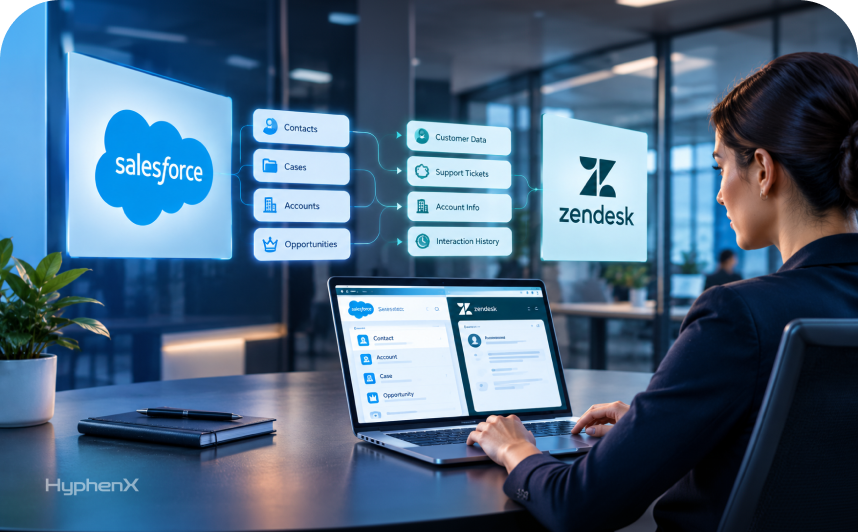

Your account manager is on a renewal call. The customer mentions “the outage last month.” The account manager has never heard of it, because it lives in Zendesk, and Zendesk isn’t connected to Salesforce.
That’s the meeting every Zendesk and Salesforce company eventually has. The fix is a well-configured integration, or in some cases a decision to stop running 2 systems. Here’s how to tell which one you need, and how to set up the integration so it doesn’t flood Salesforce with duplicates.
What the official integration does
Zendesk builds and supports the Zendesk for Salesforce integration. Zendesk’s setup guide describes 3 features you switch on separately:
Data sync (Salesforce to Zendesk). Salesforce accounts become Zendesk organizations, and contacts or leads become Zendesk users. Support agents see CRM fields such as account tier or contract end date on the ticket, and Zendesk triggers can act on them.
Ticket sync (Zendesk to Salesforce). Zendesk tickets create and update Salesforce cases, so you can report on support activity in Salesforce.
Ticket view in Salesforce. A component on account, contact, lead and opportunity pages that lists Zendesk tickets. Zendesk’s ticket view article says it queries Zendesk in real time and that the ticket data isn’t stored in Salesforce. Linked users can also create and edit tickets from it.
The Salesforce app inside Zendesk adds a sidebar on each ticket with the customer’s Salesforce details. You can connect more than 1 Salesforce org to a Zendesk instance if you run several.
What it won’t do
Zendesk’s ticket sync article lists limits that catch teams out after go-live:
- Closed tickets don’t sync. Tickets closed before you turned on ticket sync, or closed without ever syncing, won’t become cases. You need another method, such as the Salesforce API, to load them.
- Attachments don’t sync. Screenshots and log files stay in Zendesk.
- Comments don’t sync to a case field. Use ticket view on the case page to read them.
- Every required case field must be mapped, or the sync fails.
- Every Zendesk drop-down value needs a matching Salesforce picklist value. Multi-select fields shouldn’t be mapped, and Case Origin can’t be.
- The Salesforce trigger in Zendesk is off by default, and editing its JSON body breaks the sync.
These are documented design choices. Knowing them up front keeps your reporting plans realistic.
The default that creates duplicates
This is the setting we change on almost every Zendesk integration. When a ticket syncs, the integration matches its organization and requester to Salesforce accounts and contacts. By default, if it doesn’t find an exact match, it creates a new account or contact in Salesforce.
Picture a requester emailing from a personal address, or an organization spelled “Acme Inc” in Zendesk and “Acme, Inc.” in Salesforce. Each ticket creates a new record. After a few months, sales has 3 versions of its biggest customer.
Before you switch on ticket sync:
- Clean duplicates in Salesforce first, especially accounts with many support users.
- Decide the matching field. Email domain or an external ID beats company name every time.
- Turn off “create if no match” for organizations, and probably for requesters too, then route unmatched tickets to a review queue.
- Test in Zendesk and Salesforce sandboxes, as Zendesk recommends, before production.
Which fields are worth syncing
More fields don’t make a better integration. Each one is another mapping to maintain and another reason for a sync to fail. These are the ones we sync by default.
Direction | Field | Why it earns its place
|
|---|---|---|
Salesforce to Zendesk | Account tier or plan | Lets Zendesk triggers set priority and SLA |
Salesforce to Zendesk | Renewal date | Flags tickets from customers close to renewal |
Salesforce to Zendesk | Account owner | Agents know who to loop in on escalations |
Zendesk to Salesforce | Ticket status and priority | Feeds account health reports |
Zendesk to Salesforce | Product area or category | Shows which products generate the most support load per account |
Zendesk to Salesforce | Satisfaction rating | A support signal next to pipeline and renewal data |
Leave free-text fields and internal notes in Zendesk. Ticket view shows them when someone needs them.
A setup order that works
- Agree what each team needs. Sales usually wants visibility (ticket view). Support usually wants context (data sync). Leadership wants reporting (ticket sync). Not every company needs all 3.
- Connect the orgs from Zendesk Admin Center, using a dedicated Salesforce integration user.
- Set up data sync first. Map account and contact fields support actually uses: tier, ARR band, renewal date, account owner. Filter to customers only, not every lead.
- Add ticket view to account and opportunity pages so reps see open tickets before calls.
- Set up ticket sync last, after matching rules are tested. Create the custom case fields you need and map them, including every required field.
- Activate the trigger and watch the first 100 synced tickets closely.
A worked example: a 60-agent support team
Picture a SaaS company with 60 Zendesk agents, 35 account managers on Sales Cloud, and about 9,000 tickets a month.
Account managers want to see open priority tickets before renewal calls. Support wants to know which customers are in their renewal window. Leadership wants a dashboard of tickets per account against ARR.
We’d do it in this order:
- Week 1: clean duplicate accounts and add an external customer ID to both systems.
- Week 2: data sync for active customers only, with renewal date and ARR band pushed to Zendesk organizations. A Zendesk trigger raises priority for tickets from accounts within 60 days of renewal.
- Week 3: ticket view on account and opportunity pages.
- Week 4: ticket sync for new tickets, matched on the external ID, with “create if no match” switched off and unmatched tickets sent to an ops queue.
For historical closed tickets, a one-off load through the Salesforce API brings in 12 months of history so the dashboard isn’t empty on day 1.
Integrate, or consolidate onto Service Cloud?

Running 2 platforms is fine when each team is happy and the integration is stable. Consolidation starts to make sense when:
- Agents regularly need to update Salesforce records as well as read them
- You want 1 routing engine across email, chat, phone and field service
- Leadership wants AI agents that can act on both CRM and support data
- You’re paying for both platforms and the Zendesk renewal is coming up
If those sound familiar, read our introduction to what Salesforce Service Cloud is and how the handoff from sales to service works inside Salesforce. A migration is a bigger project than an integration, so the business case needs more than “one less login.”
If you stay on Zendesk, it’s 1 of several support tools that might need connecting. Our guide to Salesforce Service Cloud integrations covers the wider support stack.
Problems we see after go-live
Sync failures with vague errors. Usually a required case field that isn’t mapped, or a picklist value missing on the Salesforce side.
Wrong account on cases. The Salesforce Organization field reflects the ticket’s organization in Zendesk, and doesn’t inherit the account from the requester’s contact. Fix the organization in Zendesk.
Sales stops reading ticket view. Too many tickets, not enough signal. Filter the view to open tickets with high or urgent priority.
Reports don’t match. Closed tickets that never synced create gaps. Load history once, then report only from the sync start date.
You can see how we’ve handled similar data-matching problems in our client case studies.
Frequently asked questions
Is the Zendesk Salesforce integration free?
Zendesk builds and supports the Zendesk for Salesforce integration, and it’s available to Zendesk customers on supported plans without a separate integration fee. You still need the right Salesforce edition with API access and admin time to configure matching and field mapping. Check Zendesk’s current plan requirements before you start, because they can change.
Do Zendesk tickets sync to Salesforce cases automatically?
Yes, once ticket sync is set up and its Salesforce trigger is activated in Zendesk. New and updated tickets create and update cases. Zendesk’s documentation notes that closed tickets don’t sync and attachments stay in Zendesk, so historical tickets need a separate load if you want them in Salesforce reporting.
Why is the integration creating duplicate accounts in Salesforce?
By default, ticket sync creates a new Salesforce account or contact when it can’t find an exact match for the ticket’s organization or requester. Small differences in names or email addresses then create duplicates. Clean existing duplicates, match on a reliable field such as an external ID, and turn off “create if no match” before going live.
Should we move from Zendesk to Service Cloud?
It depends on how your teams work. If support mostly needs to read CRM context and sales mostly needs to see tickets, the integration is usually enough. If agents need to update CRM records, you want 1 routing engine across channels, or you plan AI agents across sales and service data, consolidating onto Service Cloud is worth costing out before your Zendesk renewal.
Get Zendesk and Salesforce working together
HyphenX sets up the Zendesk for Salesforce integration with matching rules that don’t create duplicates, and helps teams decide when Service Cloud makes more sense. Talk to our Salesforce integration services team, or explore our Service Cloud services.