
Your Security Health Check score says 86%. Meanwhile, 14 flows fire on every opportunity save, a third of your contacts are duplicates, and the admin who built the lead routing left in March.
The built-in score measures one slice of org health. This guide covers the built-in tools first, then gives you a 30-point checklist for everything else. Run it once a quarter and you’ll catch most problems before users do.
The built-in tools, and what changed
Security Health Check
Every org has Health Check in Setup. It compares your security settings (password policies, session settings, network access and more) with the Salesforce Baseline Standard, or a custom baseline you upload, and gives you a score out of 100.
Salesforce’s Admins blog described in May 2026 how Health Check now alerts admins when changes affect the org’s security score, and supports bulk fixes that bring settings in line with the baseline. Salesforce Ben’s guide to Health Check classifies 90% and above as excellent and 54% and below as very poor.
Treat the score as a floor. It says nothing about who has View All Data, how many automations collide, or whether your data is any good.
Optimizer is retired, so use Org Check
For years, Salesforce Optimizer gave admins a free report on unused fields, automation overlap and limits. Salesforce retired it. The Salesforce Admins blog announced in August 2025 that Optimizer was being retired in the Winter ’26 release and pointed admins to Org Check, a free Salesforce Labs app for analyzing metadata and reducing technical debt.
If your last org review was an Optimizer PDF, it’s out of date. Install Org Check in a sandbox and run it as part of the checklist below.
The 30-point checklist
Each check has what good looks like and where to look. Mark each one green, amber or red.
Security and access (6 checks)
# | Check | Good looks like | Where to look
|
|---|---|---|---|
1 | Health Check score | 80% or higher, with every high-risk item fixed or documented | Setup, Health Check |
2 | Users with Modify All Data or View All Data | Only admins and named integration users | Permission set and profile reports |
3 | Inactive users still holding licenses | 0 | User list filtered by last login over 90 days |
4 | MFA coverage | Every user, including integration users where supported | Identity Verification reports |
5 | Connected apps | Each has an owner and a reason to exist | Connected Apps OAuth Usage |
6 | Permission model | Permission sets and groups, with profiles kept minimal | Profiles in use vs permission set assignments |
Our post on Salesforce permission hygiene explains how to fix checks 2 and 6 without breaking access for half the company.
Automation (6 checks)
# | Check | Good looks like | Where to look
|
|---|---|---|---|
7 | Workflow Rules and Process Builder still active | 0, all migrated to Flow | Setup, Workflow Rules and Process Builder lists |
8 | Record-triggered flows per object | A documented, small number per object and trigger type | Flow list filtered by object |
9 | Flows with no description or owner | 0 | Flow list |
10 | Flow error emails in the last 30 days | Known, triaged, falling | Admin inbox or a flow error log |
11 | Apex triggers and flows on the same object | Avoided, or ordered deliberately | Org Check, object view |
12 | Scheduled jobs | Every job has an owner and a purpose | Setup, Scheduled Jobs |
Automation is usually where orgs break first. We’ve written about what breaks first in a hyper-automated Salesforce org if checks 8 to 11 come back red.
Data quality (6 checks)
# | Check | Good looks like | Where to look
|
|---|---|---|---|
13 | Duplicate accounts and contacts | Under 2% of records | Duplicate rules and a matching report |
14 | Duplicate and matching rules | Active on accounts, contacts and leads | Setup, Duplicate Management |
15 | Required fields actually filled | Key fields above 90% complete | Field fill-rate reports |
16 | Stale open opportunities | None past close date by more than 30 days | Opportunity report |
17 | Unused fields | Fields under 1% populated reviewed for deletion | Org Check, field usage |
18 | Picklist sprawl | Values match current process, no “Other 2” | Field definitions |
If checks 13 to 15 are red, a focused Salesforce CRM cleanup usually comes before anything else on this list.
Code and configuration (5 checks)
# | Check | Good looks like | Where to look
|
|---|---|---|---|
19 | Apex test coverage | Above 75% org-wide, with meaningful assertions | Developer Console or deployment results |
20 | Hardcoded IDs and URLs | None in code, flows or formulas | Org Check, code scanner |
21 | API versions | Code and flows on recent API versions | Org Check |
22 | Unused Apex classes and Visualforce pages | Removed | Org Check |
23 | Managed packages | Each one in use and licensed | Installed Packages |
Limits and performance (4 checks)
# | Check | Good looks like | Where to look
|
|---|---|---|---|
24 | Data and file storage | Under 80% used | Setup, Storage Usage |
25 | Daily API usage | Peak days under 70% of the limit | System Overview, API usage |
26 | Page load on key record pages | Under 3 seconds | Lightning Usage App, page performance |
27 | Custom objects and fields near limits | Comfortably below edition limits | Object Manager |
Salesforce’s developer limits reference lists the API allocation per edition and license type, which you need for check 25.
Adoption and ownership (3 checks)
# | Check | Good looks like | Where to look
|
|---|---|---|---|
28 | Daily active users | Above 80% of licensed users on working days | Login history, Lightning Usage App |
29 | Release readiness | Each release reviewed in a sandbox before it hits production | Release calendar and notes |
30 | Documentation | Every automation, integration and custom object has an owner and a purpose written down | Wherever your team keeps docs |
How to score it and what to do next
Count the reds.
0 to 3 reds: a healthy org. Fix the reds this quarter and run the checklist again in 3 months.
4 to 10 reds: normal for an org a few years old. Prioritize security reds first, then data, then automation. Most teams clear this in 1 to 2 quarters.
More than 10 reds: you’re carrying real risk. Start with a structured triage. Our 30-day org triage plan was written for orgs in this state.
A worked example: a 5-year-old sales org
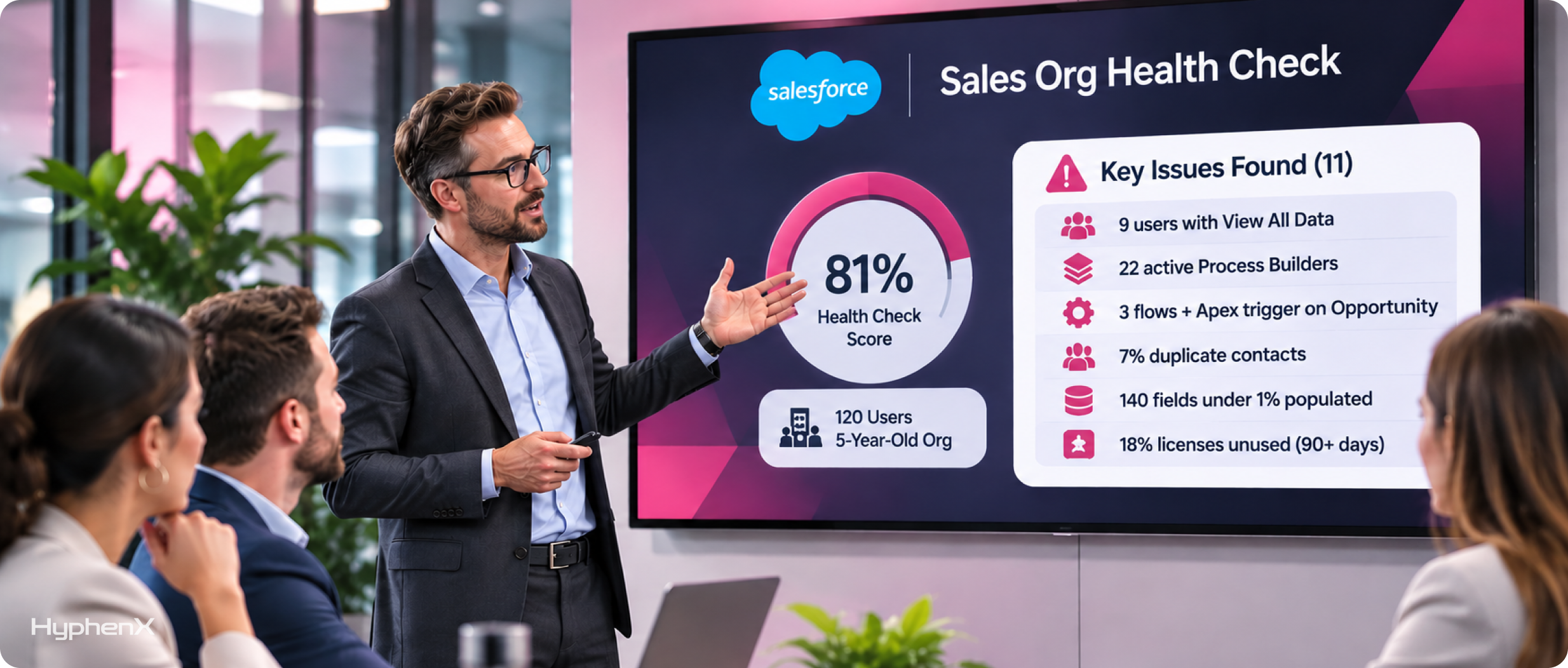
Picture a 120-user Sales Cloud org built by 3 different admins over 5 years. The Health Check score is 81%, which leadership took as “fine.”
Running the full checklist turns up 11 reds: 9 users with View All Data, 22 active Process Builders, 3 record-triggered flows and an Apex trigger on Opportunity, 7% duplicate contacts, 140 fields under 1% populated, and 18% of licenses on users who haven’t logged in for 90 days.
The license finding alone usually pays for the review. The fix order we’d use: remove excess access (week 1), reclaim unused licenses (week 1), merge duplicates and switch on duplicate rules (weeks 2 to 3), then migrate Process Builders and consolidate opportunity automation (weeks 4 to 8). See our case studies for examples of the clean-up work that follows a review like this.
Who should run it
An internal admin can run most of the checklist with Org Check, Health Check and a few reports. Plan on 2 to 3 days.
Bring in outside help when the admin is also the person who built most of what’s being reviewed, when there’s no admin at all, or when the results need turning into a funded plan. Our Salesforce managed services team runs quarterly health checks as part of ongoing support.
Frequently asked questions
What is Salesforce Health Check?
Health Check is a built-in Salesforce tool, found in Setup, that compares your org’s security settings with the Salesforce Baseline Standard or a custom baseline and gives a score out of 100. It covers areas such as password policies, session settings and network access. It doesn’t assess automation, data quality, code or adoption, so a full org health check needs more than the score.
What is a good Salesforce Health Check score?
Salesforce Ben’s guide classifies 90% and above as excellent, 80% to 89% as very good, and 54% and below as very poor. We aim for at least 80%, with every high-risk setting either fixed or documented with a business reason. The score can shift when Salesforce changes the baseline criteria, so check it after each release.
What replaced Salesforce Optimizer?
Salesforce retired Optimizer with the Winter ’26 release and pointed admins to Org Check, a free Salesforce Labs app. Org Check analyzes your org’s metadata (fields, flows, Apex, permissions and more) to help find unused components and technical debt. Install it in a sandbox first and use it alongside Health Check.
How often should we run an org health check?
Run the full checklist once a quarter, and a short version (security score, flow errors, storage and API usage) once a month. Also run it before any big project such as a new cloud, a migration or an Agentforce rollout, because those projects tend to expose problems that were already there.
Get a second pair of eyes on your org
HyphenX runs Salesforce health checks and turns the findings into a prioritized plan, then helps you fix them. Talk to our Salesforce managed services team about a quarterly review.