


A HubSpot contact export leaves out activities such as calls and notes, so the tidy CSV you download is already missing part of your history. HubSpot’s record export page says so directly. Expect gaps like this one in any HubSpot to Salesforce migration, and Zoho moves have their own.
HubSpot, Zoho and Salesforce each document their own side of the move. We found no vendor guide that covers the whole trip in this direction, so this page builds the plan from documented limits and labels each rule as theirs or ours. We start with what moves and where migrations go wrong, then cover the audit, the object maps and the field rules.
After that you’ll see what migrates and what you rebuild, then the load order, a sandbox rehearsal, the cutover choices, a runbook and a rollback plan. Cost drivers, a short case study and 15 FAQs close the page. Order matters most in the load itself, the Salesforce data migration step, since a child record can’t load before its parent.
What a Move From HubSpot or Zoho to Salesforce Actually Involves
A move has 4 layers, and 2 of them, history and configuration, don’t travel in a normal record export. At HyphenX we sort every HubSpot to Salesforce migration into records, history, configuration and connections, so each layer gets its own plan.
Sorting the move this way tells you early which parts are data you load, which are logic you rebuild and which are connections you re-point. If you’re still choosing a platform, the Zoho vs Salesforce comparison covers that decision first.
- Records. Contacts, companies, deals, tickets and other objects. HubSpot exports them as CSV, XLS or XLSX and Zoho exports each module, and these files are where any HubSpot to Salesforce data migration starts.
- History. Calls, notes, emails and attachments. Each vendor keeps them outside the main record export, so each needs its own extract.
- Configuration. Workflows, Blueprints, assignment and scoring rules, validation rules and custom functions. This is logic, so you rebuild it in the target org.
- Connections. Integrations that read or write the source CRM, such as Zoho Campaigns and Zoho Desk. Each one needs re-pointing after cutover.
Where HubSpot and Zoho Migrations Go Wrong
Many of these problems show up only after the load, and by then a fix means a delete and a reload. These 8 are backed by vendor documentation, so each one is worth checking before a HubSpot to Salesforce data migration starts.
- History never leaves with the contact file. The contact export holds no calls or notes, so each needs its own extract before cutover.
- Associations stop at 1,000 IDs. Association columns hold up to 1,000 IDs by default, and “all associated records” works in CSV only.
- Long text overflows. A HubSpot text property can hold far more than a Salesforce Text field, so long values get cut or the row fails.
- The Import Wizard is the wrong tool for some objects. It can’t import opportunities, cases or products, so deals and tickets need Data Loader or an API; see Salesforce’s import limits for the full list.
- Original dates lock you into insert-only loads. Audit fields can be set on insert only, so a rerun means delete and reload.
- Departed owners need a decision. Records owned by people who left need a named Salesforce owner before the load, and how your org treats inactive owners is something to test.
- Multi-select values vanish above 100. The Import Wizard leaves a multi-select field blank when a record holds more than 100 values.
- Old automation has no home. Salesforce stopped supporting Process Builder and Workflow Rules on December 31, 2025, so logic built there has to be rebuilt in Flow.
What to Count, Clean and Export Before You Touch Salesforce
Start with the export. Both vendors cap how much you can pull, so you want the files in hand before anything else, and they’ll feed your HubSpot to Salesforce migration steps and your HubSpot to Salesforce field mapping sheet.
☐Export every property for each object. HubSpot’s “Export all properties” returns the label, API name, data type, group, options and fill rate, and Zoho’s Fields API returns a length per field.
☐Count records per object and flag unsubscribed contacts. HubSpot contact exports include unsubscribed contacts unless you filter them out.
☐Find the longest value in every text, email and phone field. Salesforce Text holds 255, Email 80, Phone 40 and URL 255, and Zoho publishes no fixed Email, Phone or URL sizes, so measure your export.
☐List every owner and match each to a Salesforce user. Mark departed staff now, because every owner name needs a Salesforce user to land on.
☐Export associations in full. Use “all associated records” in CSV for any record that may exceed the default column limit.
☐Pull activities, notes and emails as separate extracts. HubSpot has the Calls and Notes objects, the Notes API and the Emails API, while Zoho gives you Notes through module export or the Notes API and emails one record at a time.
☐Request the Zoho Data Backup. It is admin only and ships as CSV files in a ZIP with a 7-day download link, and it covers module records and attachments but leaves out email content. Zoho’s Bulk Read API also leaves out Notes, Attachments and Emails.
☐Check each platform’s export caps. HubSpot’s help article states 300 exports per rolling 24 hours and its API reference states 30, as two separate limits. Zoho’s export limits cap a module at 50,000 records as XLSX or 200,000 as CSV, with per-day caps by edition from 10 on Free to 1,000 on Ultimate.
☐Reserve one legacy ID field per object. A HubSpot record ID is a string that’s unique only within an object, and Salesforce allows 25 External ID fields per object by default.
☐Merge duplicates by email and domain. HubSpot identifies contacts by email and companies by domain, so a CRM cleanup pass on duplicates before the load saves reloads.
Where HubSpot Objects and Zoho Modules Land in Salesforce
We found no vendor map for this direction, so this is our recommended mapping, built from documented limits. Pairing contacts with Contact or Lead, companies with Account, deals with Opportunity and tickets with Case is our call. Set up the target objects and picklist values in Sales Cloud before you load.
HubSpot Objects
|
Source object |
Salesforce destination |
Load tool |
Watch for |
|---|---|---|---|
|
Contacts |
Contact or Lead |
Import Wizard or Data Loader |
Email is the match key; contacts need a primary company |
|
Companies |
Account |
Import Wizard or Data Loader |
Domain is the match key; parent accounts need a second pass |
|
Deals |
Opportunity |
Data Loader or API |
Needs Name, StageName and CloseDate; test deals with several companies |
|
Tickets |
Case |
Data Loader or API |
The Import Wizard can’t import cases |
|
Extra company links |
Account Contact Relation |
Data Loader |
Turn on Contacts to Multiple Accounts first |
|
Deal-to-contact links |
Opportunity Contact Role |
Data Loader |
OpportunityId is required; Role can be blank |
|
Calls, notes, tasks |
Task, Event, ContentNote |
Data Loader |
WhoId and WhatId need real record IDs |
Zoho Modules
|
Source module |
Salesforce destination |
Load tool |
Watch for |
|---|---|---|---|
|
Leads, unconverted |
Lead |
Import Wizard or Data Loader |
Only unconverted leads belong here |
|
Contacts |
Contact |
Import Wizard or Data Loader |
Converted leads already live here |
|
Accounts |
Account |
Import Wizard or Data Loader |
Exists only if Company Name existed at conversion |
|
Deals |
Opportunity |
Data Loader or API |
Pipeline plus stage has no single Salesforce field |
|
Tasks, Calls, Meetings |
Task, Event |
Data Loader |
The API names Meetings as Events |
|
Notes, attachments |
ContentNote, ContentVersion |
Data Loader |
Two separate extracts |
For a Zoho to Salesforce migration, lead conversion matters. It creates a Contact, an Account only if Company Name exists, and a Deal only if you choose one. Lead Status isn’t mapped at conversion, and a converted lead can’t be reverted, so check your export to see whether the lead record survives.
The Lead or Contact call is HyphenX’s own rule. A contact with a company, or one at or past a lifecycle stage cutoff your sales operations lead picks, loads as Contact plus Account, and the rest load as Lead. Salesforce requires a Company on every Lead, so choose placeholder text for contacts with no company before you load.
What Happens to Long Text, Picklists and Dates in Transit?
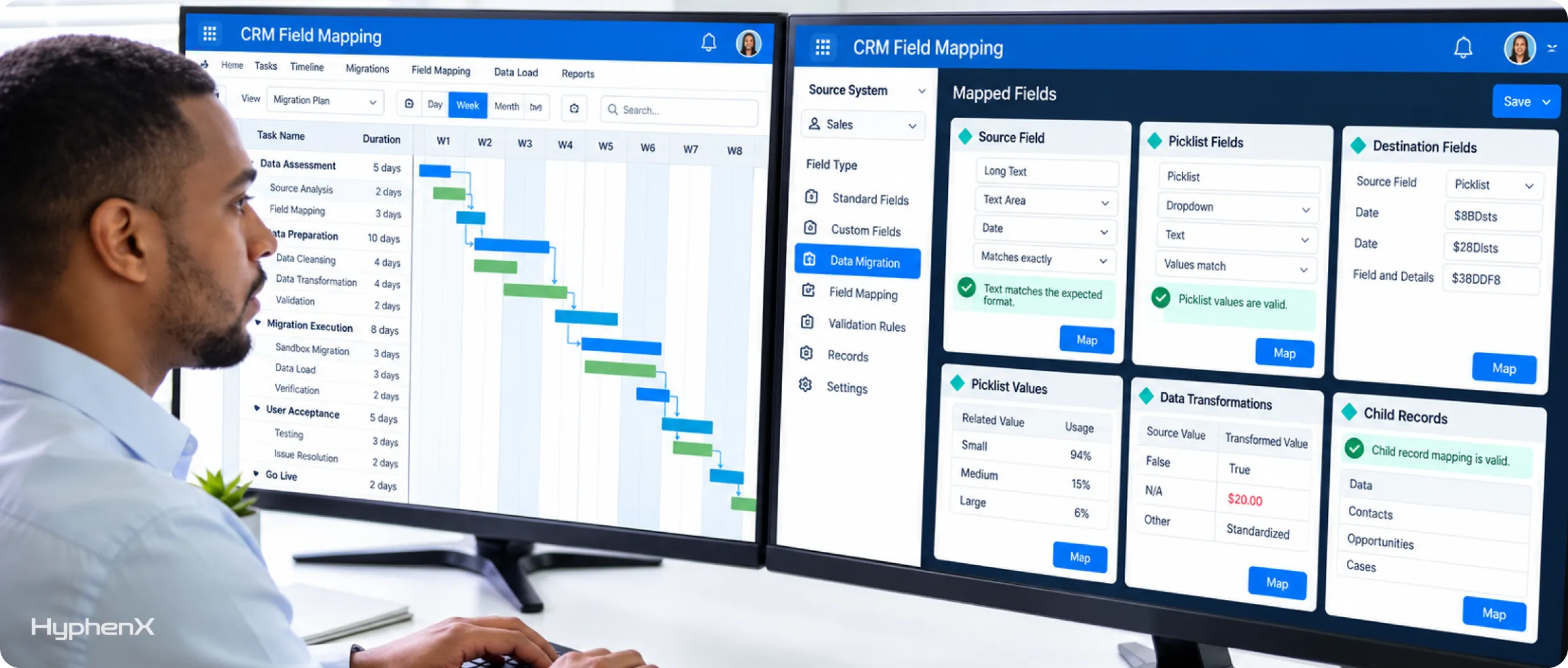
Some values get cut, blanked or shifted on the way in. Your HubSpot to Salesforce field mapping sheet has to say what happens to each of these 5 field types.
Long Text
HubSpot text properties hold 65,536 characters through the CRM, and rich text holds 64 KB including images. Zoho’s Single Line holds 255, Multi-Line Small 2,000, Large 32,000 and Rich Text 50,000, per Zoho’s engineering community posts. Salesforce field type limits give Long Text Area up to 131,072 characters, defaulting to 32,768, so set the length yourself.
Choice Fields and Multi-Select
HubSpot dropdown and radio properties map to picklists, multiple checkboxes to multipicklists and a single checkbox to a boolean, while HubSpot user custom properties can’t be mapped. In a CSV, separate multi-select values with semicolons and match existing picklist values exactly. Each value can run to 255 characters.
Dates and Time Zones
HubSpot date values sit at midnight UTC, and datetime values are UTC. Load a test row near a time zone boundary and read the date back before you load the rest. A date that drifts by a day in the test will drift across the whole load.
Numbers, Percentages and Calculated Fields
HubSpot stores 75% as 0.75, so load a test row and read back how the Salesforce Percent field treats it. A Salesforce formula field is computed, so you can’t load into it, and Zoho’s UI import doesn’t support Auto Number, Formula, Aggregate or Rollup Summary fields either. Carry calculated values as static text and rebuild the formulas.
Zoho Subforms and Multi-Select Lookups
A Zoho subform holds 100 rows, or 200 in inventory modules, and 25 columns, according to a Zoho community post that dates those counts to September 2024. Salesforce has no subform type, so in a Zoho to Salesforce migration our design is a child custom object that carries the legacy parent ID. For many-to-many data, use a junction object, which is a custom object with two master-detail relationships; Zoho’s Bulk Read docs point to the linking module for those relationships.
The Four Fields That Need a Written Rule Before You Load
Lifecycle Stage and Status
Rule: Lifecycle stage decides Lead or Contact under the rule from the object maps. Map Lead Status value by value, keep the original in a custom field, and carry Original traffic source into its own field.
Why: HubSpot’s default Lead Status values are New, Open, In Progress, Open Deal, Unqualified, Attempted to Contact, Connected and Bad Timing. Lifecycle stage moves forward only through import, forms, API, the Salesforce integration and workflows, and Zoho doesn’t map Lead Status at conversion.
Test: Load a small sample across stages, and clear the stage value first when a rehearsal needs an earlier one. Drill-down 1 and 2 of Original traffic source can’t be updated manually.
Owners and Users
Rule: Load Users first. Match owners to Salesforce users by exact name and email, and decide in writing who owns records for people who left.
Why: HubSpot’s connector syncs an owner only on an exact name and email match to an active user, so the same test works as a pre-load check.
Test: Load a few records for each owner type, active and departed, and read the owner back.
Created Dates and Authors
Rule: Choose before the first load. Either keep original dates with the audit-field permission or carry them in custom fields.
Why: Salesforce’s audit field considerations say CreatedById, CreatedDate, LastModifiedById and LastModifiedDate can be set on insert only, never on update or upsert. The feature needs Modify All Data and goes in through a permission set, not a standard profile.
Test: Insert one record with audit values and read it back. Without the permission, Salesforce most likely stamps load time and the loading user, but no page says so, so confirm in a sandbox.
Record IDs and External IDs
Rule: Give each migrated object one External ID field, marked Unique, that holds the legacy ID. Run every load as an upsert on it.
Why: A HubSpot record ID is unique only within an object, so the same ID can repeat across objects. External ID fields can be custom text, number or email, and Unique fields count toward the default limit of 25 per object.
Test: Run the same file twice. The second run should create zero records and update every row.
What Migrates, What Gets Rebuilt and What Has No Documented Route
We read each vendor’s export and API pages on October 16, 2026, including HubSpot’s content and data export page, and mark a route only where a page states it. Where we found nothing, the cell says none found or not documented.
|
Data |
HubSpot route |
Zoho route |
Verdict |
|---|---|---|---|
|
Contacts, companies, deals, tickets |
Record export |
Module export, Bulk Read |
Migrates |
|
Associations |
Export columns, capped by default |
Lookup columns in export |
Migrates with limits |
|
Activities |
Calls object; contact export omits |
Tasks, Calls, Meetings modules |
Separate extract |
|
Notes |
Notes API |
Module export, Notes API |
Migrates |
|
Logged emails |
Emails API |
One record at a time |
Partial |
|
Attachments and files |
None found |
Data Backup |
Partial |
|
Products and line items |
Products export; line items none found |
Products module |
Partial |
|
Workflows |
Spreadsheet and PNG |
Not documented |
Rebuild |
|
Marketing email |
HTML or PDF per email, API |
Separate Campaigns app |
Rebuild |
|
Lists and segments |
Members only |
Not documented |
Rebuild criteria |
|
Sequences |
None found |
Not documented |
Not documented |
|
Integrations |
Not documented |
Desk matches contacts by email and accounts by account name |
Re-point |
HubSpot line items, sequences and attachments have no documented export route, and we found no bulk email export for Zoho. Zoho Blueprints, assignment rules, scoring rules, validation rules, custom functions and Canvas aren’t documented as exportable, and disabling Zoho Campaigns unlinks every CRM campaign. Rebuilding those pieces in the target org is Salesforce implementation work.
The Load Order That Keeps Records Linked, and the Tools to Run It
Salesforce publishes more than one load order and they differ, so the 9 HubSpot to Salesforce data migration steps below are HyphenX’s own sequence, derived from dependencies. Put an External ID on every parent and upsert, which inserts a record when nothing matches and updates it when one record does; several matches return a 300 error and change nothing. For the technical side of the load, see migrating older CRM data with little downtime.
|
Tool |
Limits |
Watch for |
|---|---|---|
|
Import Wizard |
50,000 records and 100 MB per import |
Can’t import opportunities, cases, campaigns, contracts, assets, products or documents |
|
Data Loader |
Batches up to 200 records on SOAP |
Fails a row with too much text unless Allow field truncation is on, and Bulk API doesn’t offer that option |
|
Bulk API and Bulk API 2.0 |
10,000 records per batch on v1; 150 MB per 2.0 ingest job |
Both share 150,000,000 records and 15,000 batches per rolling 24 hours, per Salesforce’s Bulk API limits |
- Users. Owners have to exist before their records load.
- Accounts. Load them with ParentId blank, then run a second pass that fills ParentId once every parent exists.
- Contacts. Point each one at its account through the parent’s External ID.
- Account Contact Relations. Turn on Contacts to Multiple Accounts, then use Data Loader; IsDirect can’t be set on create, and Roles is a multipicklist.
- Leads and Campaign Members. A Lead needs LastName and Company, and Campaigns load before their members.
- Products and price book entries. Load these before the opportunities that carry line items, since a line item needs a product in the opportunity’s price book.
- Opportunities, then roles and line items. Name, StageName and CloseDate are required, AccountId is a single lookup, and OpportunityContactRole needs an OpportunityId with Role optional.
- Cases. Reference the accounts and contacts you’ve already loaded, since the Import Wizard can’t load them.
- Tasks, Events, notes and files last. WhoId and WhatId are polymorphic and can’t map to an External ID in Data Loader, so query the real IDs back. Insert each file as a ContentVersion, then link it; base64 adds about 30% to binary file inserts.
How to Rehearse in a Sandbox and Switch Off Automation Safely
Salesforce’s own advice is to test the whole migration in a sandbox and validate the imported data afterward. That’s Salesforce migration testing and validation in practice: you run the load, count, sample, fix the file and run it again.
- Developer. 200 MB of data, refreshable every 1 day, which suits small mapping tests.
- Developer Pro. 1 GB of data, refreshable every 1 day.
- Partial Copy. 5 GB, refreshable every 5 days, with up to 10,000 records per selected object, so it can’t hold a full-volume rehearsal.
- Full. The data limit matches production and it refreshes every 29 days. It’s the only type that supports performance and load testing, so run the final rehearsal here; the sandbox storage and refresh limits page covers each type.
- Validation rules. Trailhead documents a Custom Permission bypass for validation rules. No official page confirms it works for Data Loader runs, so treat it as a practitioner pattern and test it.
- Flows. A Salesforce article describes a Custom Permission bypass for flows but never mentions data loads. An old Salesforce article says Data Loader fires workflow rules and processes and that this can’t be switched off, so test flow behavior here too.
- Duplicate rules. Salesforce’s documented bypass is to deactivate the duplicate rule and the matching rule, and it advises against that unless necessary. Its overview says duplicate rule settings are overridden for import tools and APIs, so confirm in the rehearsal what that means in your org.
- Assignment rules. Data Loader’s assignment rule setting overrides CSV owner values, so decide whether the rule or the file sets ownership.
- Sandbox email. New and refreshed sandboxes default to System email only, so check the setting before a load and keep email-sending automation off.
How to Choose Between Big Bang, Phased, Parallel and Coexistence Cutovers
These 4 names are practitioner terms, and we found no vendor that defines them, so the comparison below is HyphenX’s method. Pick the one that matches how much risk your team can carry on go-live day. Each approach changes who owns what in a Salesforce migration, so name an owner for every phase.
Big Bang
Best when: you have one team, one org, a short object list and a rehearsal that passed with full data.
Main risk: a miss hits every user on the same day.
Setup rule: finish the full-volume rehearsal first, because there is no second wave to learn from.
Phased
Best when: teams, regions or products split cleanly.
Main risk: two systems of record for a stretch, and shared accounts change in both.
Setup rule: keep a wave tag next to the legacy ID on every record.
Parallel
Best when: a team wants to compare reports from both systems before it trusts the new one.
Main risk: double entry, and drift between the two systems.
Setup rule: name one system of record for each object and write it down.
Coexistence
Best when: HubSpot stays for marketing while Salesforce takes sales.
Main risk: two-way sync can overwrite values you just migrated, and HubSpot checks for changes only about every 15 minutes.
Setup rule: keep Smart Transfer off while the connector runs, because HubSpot’s connector page says running both creates duplicates.
The Cutover Runbook, From Freeze to Hypercare
These HubSpot to Salesforce migration steps for the week itself are HyphenX’s method. We found no vendor runbook, and we give no durations because yours depend on your volume.
- Freeze scope. Lock the mapping sheet and stop schema changes, then list every integration that writes to the source.
- Rehearse in full. Run the last full-volume load in a Full sandbox. Load one record first, confirm it, then load the rest.
- Pause and extract. Pause integrations and start the final extract early, because HubSpot and Zoho both cap exports per day.
- Load. Run the 9 steps in order, with the audit permission on if you keep original dates, bypasses in place and error logs saved.
- Reconcile. Compare record counts by object with the export, sample records and read the error logs, and check for children with no parent. This is Salesforce migration testing and validation on production.
- Delta and go or no-go. Upsert the records that changed since the extract timestamp, remembering that audit-field loads can’t upsert. One named owner decides against the triggers in your rollback plan, then you re-point your Salesforce integrations.
- Hypercare. This is the stretch after go-live when you watch closely: error reports, support requests and user adoption. Keep export files and the source account untouched until the rollback window closes.
How to Plan a Rollback Before You Need One
Decide your rollback triggers, an owner and the thresholds before cutover, and write them down. This page publishes no threshold number because we found no vendor source that supports one.
|
Situation |
Rollback route |
What the vendor documents |
|---|---|---|
|
A load wrote wrong values to new records |
Delete the loaded records by legacy ID, fix the file, reload |
Deleted records stay in the Recycle Bin 15 days, or 30 with extended retention |
|
A hard delete removed the wrong rows |
Restore from your export files |
Hard-deleted data isn’t recoverable, and Data Loader hard delete skips the bin |
|
Original dates loaded wrong |
Export, delete and reinsert |
Audit fields are insert only, and upsert is unsupported |
|
A rehearsal failed in a sandbox |
Refresh or discard the sandbox and run again |
Salesforce publishes a refresh interval for each sandbox type |
|
A Zoho lead was converted wrongly |
Reload from your export files |
Zoho says a converted lead can’t be reverted |
Records created in Salesforce during the cutover window need a decision before you start. Our method is to list them first: query records created after the load ended, then carry them back by hand or by import before users return to the source. If any of them go back into HubSpot, clear their lifecycle stage values first.
What Drives the Cost of Moving From HubSpot or Zoho to Salesforce

License cost follows Salesforce’s Sales pricing page, and effort follows scope. We read these list prices on October 16, 2026, and the page says it is for information only and can change, so confirm the numbers there.
- Starter Suite: $25 per user per month, billed monthly or annually
- Pro Suite: $100 per user per month, billed annually
- Core: $195 per user per month, billed annually
- Advanced: $395 per user per month, billed annually
- Max: $550 per user per month, billed annually
Beyond licenses, 6 things move the bill: the number of objects, record and file volume, automation you rebuild, systems you connect, rehearsal loads and sandbox type. Salesforce’s CRM migration page says simple migrations may take a few weeks and larger ones several months. It also says migration planning, testing and validation should be performed by the customer, while planning, scoping, implementation, execution and data manipulation fall outside Support and Admin Assist scope.
The Migration Team Behind Your Cutover
Moving from HubSpot or Zoho means mapping objects, rewriting automation and running a cutover weekend, and each part calls for a different skill. HyphenX Solutions has 250+ Salesforce professionals, including data analysts, admins and developers who rehearse the load in a sandbox before production. The rollback plan is written before cutover starts, and the same team stays on call through the first week. Meet the migration specialists.
A Case Study in Keeping Salesforce Records Clean at the Point of Entry
From Swivel-Chair Prospecting to Single-Click Pipeline
A B2B SaaS team ran 3 prospecting tools that weren’t connected to Salesforce Sales Cloud, so reps copied data between those tools and the CRM by hand, which led to inconsistent records, duplicates and rising email bounce rates. HyphenX built a unified enrichment layer inside Salesforce that connects all 3 tools through their APIs, with a single-click identify-and-insert action on Lead, Contact and Account records. Deduplication, source attribution and an email-verification gate run before any record is written.
Key takeaway: Clean data holds in Salesforce when deduplication, source tracking and email verification sit inside the same workflow that creates the record.
Read the full case study: From Swivel-Chair Prospecting to Single-Click Pipeline
Explore more case studies: all case studies
Frequently Asked Questions About Migrating From HubSpot or Zoho to Salesforce
Is there an official HubSpot or Zoho to Salesforce guide?
We found none. HubSpot’s Smart Transfer lists 13 apps and all of them move data into HubSpot, while Zoho publishes migration guidance only for Salesforce into Zoho. Each vendor documents its own side, so a plan for this direction has to be built from their documented limits.
How long does a HubSpot to Salesforce migration take?
Salesforce says simple migrations may take a few weeks and larger ones several months. Its timeline covers auditing and cleaning data, configuring and testing, launch and validation, and training. Your object count, record volume and rebuilt automation move the answer, so we give no figure of our own.
How much does a move to Salesforce cost?
Licenses follow Salesforce’s list prices, which run from $25 to $550 per user per month on the page we read on October 16, 2026. Effort follows scope: objects, volume, rebuilt automation, connected systems and rehearsal loads. Salesforce Support doesn’t scope or execute migrations, so budget for the people who do.
Can the Import Wizard load HubSpot deals?
The Import Wizard can’t import opportunities, cases or products, and it stops at 50,000 records per import. Use Data Loader or an API instead. An opportunity needs a Name, a StageName and a CloseDate, so check your deal export for all three before you load.
What does a HubSpot export leave out?
A contact export omits calls and notes, though Calls is its own exportable object. We found no official export route for line items or sequences, segment exports list members without their criteria, and workflows export as a spreadsheet plus a PNG. Pull each of these as its own extract.
How many HubSpot exports can I run in a day?
HubSpot’s help article states 300 exports per rolling 24 hours, 3 at once, with 30-day download links. Its Exports API reference states 30 per rolling 24 hours, one at a time, with 5-minute URLs. Neither page says which channel it governs, so plan around the lower figure.
How do HubSpot associations land in Salesforce?
In our mapping, the primary company becomes the contact’s account, extra companies become Account Contact Relations, and deal contacts become Opportunity Contact Roles. Contacts need a primary company in HubSpot. We found nothing documented on how a deal with several companies attaches to an opportunity, so test it in your rehearsal sandbox.
Should a HubSpot contact become a Lead or a Contact?
We found no vendor rule, so this is our rule: a contact with a company, or past a lifecycle cutoff your sales operations lead picks, loads as Contact plus Account, and the rest load as Lead. Salesforce requires LastName and Company on every Lead. Choose placeholder text for contacts without a company.
Can I keep original created dates in Salesforce?
Yes, with the audit-field permission, which needs Modify All Data and a permission set. Values go in on insert only, so a rerun means export, delete and reinsert. If that cost is too high, carry the original date in a custom field, and test one record first.
How do I make a data load safe to run twice?
Create an External ID field marked Unique, fill it with the legacy ID and upsert on it. Salesforce creates a record on no match, updates on one match and returns a 300 error on several. Audit-field loads can’t upsert, and the default limit is 25 External ID fields per object.
How do I get notes, files and emails out of Zoho?
Notes leave through the module export or the Notes API, which needs an admin profile. Attachments come in the Data Backup, an admin-only CSV in ZIP with a 7-day link, and the backup leaves email content out. We found no bulk route for emails, only one record at a time.
How do Zoho subforms land in Salesforce?
Salesforce has no subform type, so our design is a child custom object that carries the legacy parent ID. Zoho subforms hold up to 100 rows and 25 columns, according to Zoho’s community posts, so check each subform’s size first. For many-to-many data, use a junction object with two master-detail relationships.
Do HubSpot workflows migrate to Salesforce?
A workflow exports as a spreadsheet plus a PNG, with no history, so the export works as a spec. Document each trigger, condition and action from the spreadsheet. Then rebuild the logic in Flow, because Salesforce stopped supporting Process Builder and Workflow Rules on December 31, 2025.
Which rules can block a load, and how do I bypass them?
For validation, Trailhead documents a Custom Permission bypass, but no official page confirms it works for Data Loader runs, so test it. For duplicates, Salesforce’s documented route is deactivating the duplicate and matching rules, which it advises against unless necessary. Confirm the behavior in your rehearsal.
Can I run HubSpot and Salesforce together?
Yes, through HubSpot’s Salesforce connector on Professional or Enterprise, which is built for ongoing two-way sync. HubSpot checks for changes about every 15 minutes, and running Smart Transfer alongside the connector creates duplicates. Deleting a HubSpot contact doesn’t delete Salesforce contacts or leads, so plan cleanup in both systems.