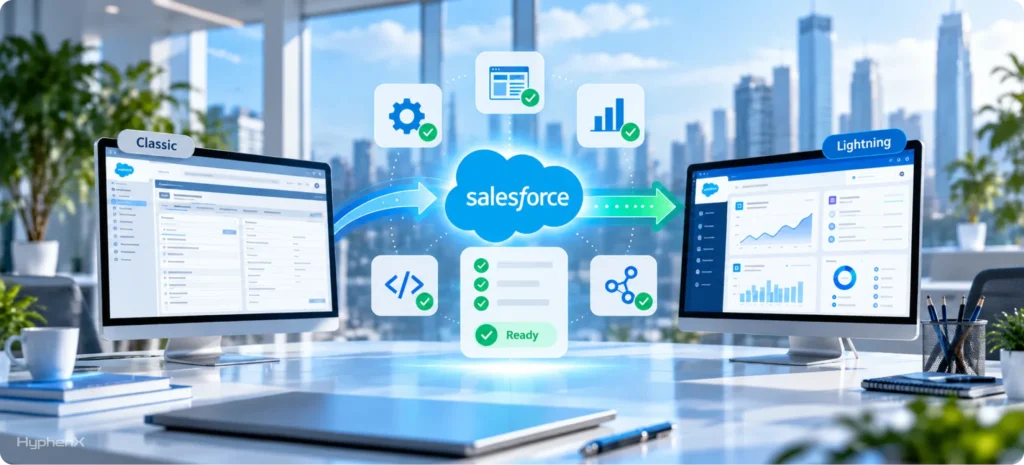

Picture Monday, 8:05 a.m. A rep clicks the custom button she uses all day, and nothing happens. The weekend cutover to Lightning Experience appeared to go smoothly, yet that button runs JavaScript, and Lightning doesn’t support it. No one tested it, because no one had listed it.
Salesforce says the Classic interface “isn’t going away yet,” but all new innovation ships in Lightning Experience only, and several Salesforce tools around the switch have dated retirements: Salesforce for Outlook on January 30, 2027, Lightning Sync on April 1, 2027 and Salesforce Optimizer as of Winter ’26. A Salesforce Classic to Lightning migration is mostly a matter of finding what breaks before users do. The 25 checks fall into 5 groups: group 1 covers code and buttons, group 2 screens and navigation, group 3 content and reports, group 4 integrations and automation, and group 5 users and go or no-go gates.
Where Salesforce gives no date or number, this page says so. HyphenX Solutions, a Salesforce consultancy, wrote it for admins, architects and project leads who sign off on Salesforce migration projects.
Contents
- What a Classic to Lightning Migration Actually Moves
- Where Salesforce Classic Stands in 2026
- Classic vs Lightning: What Changes for Admins and Users
- Build Your Inventory Before You Test Anything
- Custom Buttons, Links and Code That Break First
- Page Layouts, Lists and Navigation
- Content, Reports and Dropped Features
- Integrations, Automation and Environment
- Users, Testing and Go or No-Go Gates
- A Cutover Timeline From 30 Days Out to 30 Days After
- What Drives the Effort and Cost of a Lightning Migration
- How the Checklist Maps to Salesforce’s Own Gap List
- Cutover Mistakes That Trace Back to Salesforce’s Documentation
- Frequently Asked Questions
What a Classic to Lightning Migration Actually Moves
Despite the word “migration,” your data stays where it is. Records, fields and objects remain in the org, with 2 content types, Knowledge articles and notes, following their own replacement paths in checks 11 and 12. What moves is the interface users work in, the customizations that run inside it and the permission that decides who can open it. Salesforce says you don’t need to turn Lightning Experience on as a separate step, because access comes from the Lightning Experience User permission, which standard profiles already include. Cutover therefore means different things by profile: users on custom profiles need the permission, and the org-wide toggle in check 25 makes Lightning the only interface.
That is why failures cluster around customizations, and data rarely causes them. A button written for Classic, a Visualforce page with a hard-coded redirect or an email template with externally linked CSS can each stop working during the switch.
In this guide, “cutover” means the moment Lightning becomes the interface users land in. Checks 1 through 20 are run ahead of it, mostly in a sandbox, and checks 21 through 25 cover the pilot, testing and the go or no-go call that releases it.
Where Salesforce Classic Stands in 2026
Status. Salesforce Help says, “The Salesforce Classic user interface isn’t going away yet,” and that “all new Salesforce innovation is available in Lightning Experience only.” The page names no retirement date, and none turned up on any Salesforce page checked for this guide.
Switching. A Salesforce Help article on switching, published May 13, 2026, confirms users with the Lightning Experience User permission can switch between the 2 interfaces. The option may be disabled by an admin or limited by your edition. Starter and Starter Pro Suite are Lightning-only, and in Essentials only System Administrators can switch to Classic.
Adoption tools. The Configuration Converter’s help page says it was scheduled for retirement on January 10, 2025, a date that has passed, and a third-party report names the Transition Assistant and the Experience Readiness Check, Salesforce’s org-readiness analysis, in the same retirement. Salesforce’s page on turning Classic off still describes the Transition Assistant, so check Setup directly.
Because Salesforce’s status page names no date, re-open it on the day you sign off and record what it says. A saved copy or screenshot in the project folder gives reviewers a record.
Treat Classic as a fallback. New features won’t arrive there, and a missing end date for the interface says nothing about the dated retirements nearby, which group 4 lists one by one.
Classic vs Lightning: What Changes for Admins and Users
This Classic vs Lightning table compares the 2 interfaces at the level of daily work, which is where admins and users notice change first. The last column points to the check that tests each row.
Area | Salesforce Classic | Lightning Experience | Check |
|---|---|---|---|
New features | Not added | All new Salesforce innovation is available here only | None |
User access | Default interface in a Classic org | Needs the Lightning Experience User permission, on by default in standard profiles | 21 |
Record pages | Page layouts and the enhanced page layout editor | Lightning App Builder; the layout supplies the fields and Dynamic Forms pages place them freely | 6 |
Custom buttons | JavaScript buttons work | JavaScript buttons are unsupported; URL and Visualforce buttons work | 1 |
Visualforce | Works as built | “Most” pages work without revisions; others need changes | 3 |
Knowledge | Classic Knowledge | Lightning Knowledge; all orgs must migrate | 11 |
Switching back | Not applicable | Users with Lightning access get the Switcher | 22 |
Org-wide setting | Not applicable | The “Make Lightning Experience your org’s only experience” toggle | 25 |
Build Your Inventory Before You Test Anything
An inventory comes first because every later check starts from a count. Knowing how many Visualforce pages, buttons and packages exist, and who owns each, decides how long the testing phase runs. The steps below use only the tools and queries Salesforce itself names.
- Query your code. Salesforce’s own Optimizer replacement guide suggests SOQL queries that list Apex classes, triggers and Visualforce pages by API version. Save the results; check 3 starts from this list.
- Run the Setup checks. Open Release Updates, Check for API Versions, Security Health Check and Storage Usage in Setup. Salesforce names these as alternatives to Optimizer, which check 20 covers in full.
- Count buttons and packages. List custom buttons and links on each object, and review Installed Packages in Setup. Checks 1 and 5 start from these lists.
- Look for the Transition Assistant. Type “lightning” in Setup’s Quick Find. If it’s missing, Salesforce’s switching article says to contact Salesforce Support, while its turn-off article says the “Lightning only” permission may already be selected. Rule out the second explanation first.
- Assign an owner to every check. Customizations belong to a developer, automation to an admin, integrations to whoever owns the connected system, and sign-off to a business lead.
Finish these steps before check 1. The inventory turns “we think we have a few JavaScript buttons” into a number, and that number sets the size of everything that follows.
Custom Buttons, Links and Code That Break First
# | Check | Test and pass condition | If it fails |
|---|---|---|---|
1 | JavaScript buttons and links | List custom buttons and links by content source on each object, then open each in a sandbox. Per Salesforce Help, buttons with a URL or Visualforce source work as expected, but Salesforce’s unavailable list names URL buttons that pass parameters, so test those first. Pass: no button left on a JavaScript source. | Rebuild the action as a URL button, a Visualforce-source button or a quick action, and retest. |
2 | S-controls | Search Setup for S-controls. Salesforce calls this customization method obsolete. Pass: none remain in use. | Replace each with a Visualforce page or a Lightning component, then retire the S-control. |
3 | Visualforce pages | Open each page through a Lightning navigation, because pages viewed by direct URL always display in Classic. Scan code for window.location, apex:iframe and showHeader or sidebar attributes, per Trailhead’s known issues. Pass: each page renders and navigates inside Lightning, with related lists and list overrides reviewed. | Change the navigation code, avoid nested iframes and retest. Pages that need heavier rework go on the development list. |
4 | Hard-coded links and overrides | Search buttons, links and templates for Classic URLs. A nooverride=1 parameter becomes nooverride=true in Lightning, and links to unsupported pages open Classic in a new tab. Pass: no link sends a user to Classic by surprise. | Replace the hard-coded URL with a record or object link that works in both interfaces, and retest the override. |
5 | AppExchange packages | Look for the Lightning Ready sash on each listing, then test each package in the sandbox. Pass: every package is confirmed in Lightning or has a documented Classic fallback. | Ask the vendor for a Lightning-ready version, and keep the affected users on Classic until it ships. |
Rebuilding a failed button as a quick action or URL button is Salesforce customization work. Visualforce pages that fail the check usually need code changes, which falls under Salesforce development. Apex sharing rules and sharing recalculations also appear on Salesforce’s unavailable list, so review any Apex-managed sharing alongside the code inventory.
Page Layouts, Lists and Navigation
☐Check 6, record pages. Salesforce says the Lightning App Builder customizes record pages, while the page layout “defines which fields are available.” On Dynamic Forms pages, fields can go almost anywhere. The highlights panel takes its fields from the compact layout, so review both. Pass: each key object has a record page that shows the fields its users need. If it fails: build or adjust the page in the App Builder, then correct the compact layout.
☐Check 7, related lists. The Basic List type “displays only the first four fields” of a related list, and some related lists aren’t supported at all. Pass: every related list users rely on shows the columns they use. If it fails: switch the list to the Enhanced List type, which shows more fields and adds sorting and resizing.
☐Check 8, list views and object home. The unavailable list names feeds on list views, following records from a list, drag-and-drop scheduling, alphabet shortcuts and the Recently Created and Recently Modified lists. Pass: users have a replacement for each one they used. If it fails: build equivalent list views or reports and show users where they live.
☐Check 9, search. Sidebar Search, Advanced Search and Search All aren’t available, and neither are custom buttons on search results pages or user-defined lookup filter fields. Pass: training covers the new search path, and any custom search layouts are reviewed. If it fails: record which searches users run most and rebuild those as list views or reports.
☐Check 10, console apps. Skip this check if you don’t use a console. Otherwise confirm you can live without resizable split view, keyboard shortcut overrides, interaction logs, tab preview on hover, collapsible regions and multi-monitor pop-out workspaces, all of which Salesforce lists as unavailable. Pass: agents sign off on the console they will actually get. If it fails: decide whether those agents stay on Classic for now.
Run these checks with real users from each role. Admins alone can’t stand in for them. Salesforce’s list of unavailable features is long, and the quickest way to find which items matter is to watch someone do their normal day in a sandbox. Record each result as pass, fail with an owner, or not applicable, and keep the results in one place.
Content, Reports and Dropped Features
- Check 11, Knowledge. Salesforce states that “all orgs are required to migrate from Classic Knowledge to Lightning Knowledge,” and that the migration tool had to run before June 1, 2025 to maintain access to Knowledge. Pass: your org is on Lightning Knowledge and articles are visible to the right users. If it fails: treat it as a blocker, because it affects access to Knowledge itself.
- Check 12, notes, attachments and files. Notes & Attachments is being superseded by Notes and Salesforce Files. In Lightning the New Note button isn’t on the related list, legacy attachments can’t be created, and Documents isn’t available. Content tags and content deliveries are also on the unavailable list. Pass: users know where to add notes and files. If it fails: move recurring document uses to Files and tell users the new path.
- Check 13, email templates and mail merge. The Email action layout must include the EmailTemplate field for Classic templates to appear. Externally linked CSS isn’t supported, attachments from Classic templates are read only, and Visualforce templates are read only. The Mail Merge button isn’t available. Pass: each template is inserted and sent from a test record. If it fails: add the field to the layout and replace linked CSS with styling inside the template.
- Check 14, reports and dashboards. Unavailable items include report notifications, scheduled report refreshes, scheduled dashboard refreshes, following reports and dashboards, Visualforce components on dashboards and legacy folder sharing. Salesforce’s comparison page lists pie charts as not available, but its gaps page says Classic pie charts display as donut charts in Lightning, so check your report charts visually. Pass: every scheduled report and dashboard is accounted for. If it fails: list the owners, then agree on a replacement for each one.
- Check 15, dropped sales and service features. The sales list includes contact roles on accounts, Campaign Influence 1.0, Divisions, competitor tracking and archiving products and price books. On the service side, Answers, Chatter Answers, Ideas, Self-Service portals and Solutions are on it. Service orgs should compare this list against their Service Cloud setup. Pass: no active process depends on a feature that is gone. If it fails: map each process to a supported feature or a documented workaround.
Ask a few users from each team which of these they touched last month before you decide a gap is harmless. Keep a running list of day-one workarounds so the support team has answers ready.
Integrations, Automation and Environment

Check 16: Outlook and Lightning Sync
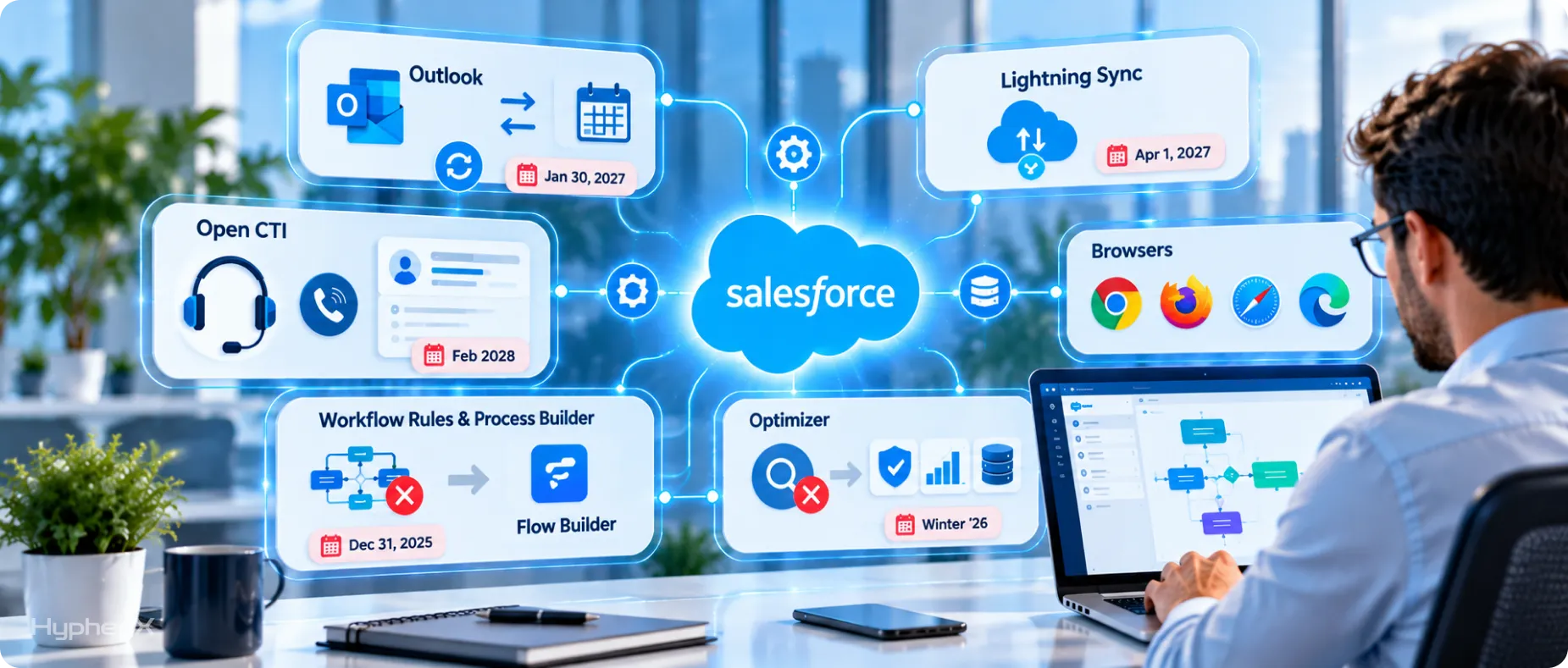
- What Salesforce says: Salesforce for Outlook was rescheduled to retire on January 30, 2027. The replacement is Einstein Activity Capture with the Outlook Integration, and custom field mappings and sync filters don’t transfer automatically. Lightning Sync’s retirement date is April 1, 2027, and Salesforce’s list names no replacement.
- Pass and fix: each user has a working sync path before either date arrives. If not, set up the new tools in a sandbox and recreate the mappings and filters by hand.
Check 17: Workflow Rules and Process Builder
- What Salesforce says: Salesforce no longer supports them as of December 31, 2025, meaning no customer support or bug fixes. Active ones keep running, and Salesforce recommends moving them to Flow Builder.
- Pass and fix: you hold a list of active rules and processes with a Flow plan for each. Teams that need help planning conversions can look at Salesforce workflow automation.
Check 18: Open CTI and Call Centers
- What Salesforce says: 3 Open CTI methods, getDirectoryNumbers(), isInConsole() and searchAndGetScreenPopUrl(), aren’t available in Lightning Experience. Salesforce’s retirement list also gives Open CTI an entry dated Spring ’28, February 2028, so ask your vendor which version it builds against.
- Pass and fix: your phone vendor confirms support for the Lightning version of its adapter, and the owner of any custom Salesforce integration has tested screen pops. If a method is in use, change the integration code before cutover.
Check 19: Browsers
- What Salesforce says: Lightning Experience supports the latest stable versions of Chrome, Firefox, Safari and Edge Chromium. Internet Explorer and non-Chromium Edge aren’t supported, and neither are incognito or other private browsing modes.
- Pass and fix: every desktop in scope runs a supported browser. If not, schedule browser updates ahead of the pilot and tell testers to avoid private windows.
Check 20: Org Health Tooling
- What Salesforce says: Optimizer was scheduled for retirement as of Winter ’26. Salesforce names Security Health Check, Release Updates, Storage Usage, Check for API Versions and SOQL queries as replacements.
- Pass and fix: the reports you used Optimizer for now come from these sources. If a report has no equivalent, write the SOQL query and save it with the inventory.
This group has the most dates attached, so start its dated items early. Two of those dates fall in early 2027, which leaves little room if a cutover slips by a quarter.
Users, Testing and Go or No-Go Gates
Check | What to do | Pass looks like (evidence) |
|---|---|---|
21: Pilot group | Access comes from the Lightning Experience User permission. Standard profiles already include it, so users on them already have access. For a pilot among users on custom profiles, create a permission set containing the permission and assign it to the pilot group; editing the profile itself opens it to everyone on that profile. | Pilot users are named, the permission set exists and each pilot user has a test list. |
22: Switcher decision | Salesforce says all users with Lightning access get the Switcher, and check 25 covers how admins hide it. Edition rules matter too: Starter editions are Lightning-only, and in Essentials only System Administrators can switch to Classic. Decide who keeps a way back and for how long. | A written switch policy by profile, agreed with the business lead. |
23: Usage baseline | Open the Lightning Usage App from the App Launcher. It shows daily active users, switches to Classic, browsers, slowest desktop record pages and most-viewed pages. You can’t export its data to reports from the UI, so use the Lightning Usage App API. | A dated snapshot taken during the pilot, which covers pilot users only, to compare against after cutover. |
24: Role-based testing | Run scripts per role in a sandbox, covering the most common tasks for each. Include the buttons, templates and reports from groups 1 through 3 that each role touches. | Pass or fail results per role, with every failure linked to a check number. |
25: Go or no-go call and the Classic toggle | To make Lightning the only interface, open the Transition Assistant, go to the Optimize phase, expand “Turn Off Salesforce Classic for Your Org” and switch on “Make Lightning Experience your org’s only experience,” per Salesforce Help. Users with View Setup and Configuration through custom profiles or permission sets keep Classic access. For standard profiles, use a permission set with “Hide Option to Switch to Salesforce Classic.” | Checks 1 through 24 are closed or accepted in writing, the business lead has signed off and a named person can reverse the toggle. |
If the Transition Assistant is missing in Setup, the inventory steps explain the 2 documented reasons, so settle that before you plan around the toggle. Give the go or no-go reviewers 3 items together: the check results, the pilot results and the baseline snapshot.
A Cutover Timeline From 30 Days Out to 30 Days After
Salesforce doesn’t publish a standard schedule for this move, so the dates below are a planning suggestion. Shift them to match your org’s size and how many checks fail. Group 4 leads because its dates are fixed, while groups 1 through 3 depend on what the inventory finds. Two rules hold in any version: finish the code and content checks before the pilot opens, and keep the go or no-go review off the same day as the last test.
- 30 to 21 days out: finish the inventory, then work through checks 16 through 20, which carry the dated retirements.
- 20 to 15 days out: run checks 1 through 15 in a sandbox and fix what fails.
- 14 days out: open the pilot group (check 21), take the baseline (check 23) and decide the Switcher policy (check 22).
- 7 days out: finish role-based testing (check 24), then hold the go or no-go review (check 25) at least a day later.
- Cutover day: grant the permission to the remaining custom profiles, use the check 25 toggle if Lightning will be the only interface, and keep the person who can reverse it online.
- 1 to 7 days after: read the Lightning Usage App daily, watching switches to Classic and slow record pages, and log every ticket against a check number.
- 30 days after: review the log, decide whether to retire the Switcher for more profiles and fix what’s left.
Ongoing upkeep after cutover falls under HyphenX’s managed services and support services, and the ticket log is what makes either useful. The log is the quickest way to see which of the 25 checks was too thin.
What Drives the Effort and Cost of a Lightning Migration
Driver | Why it adds work | Where to count it |
|---|---|---|
JavaScript buttons and S-controls | Each one needs a rebuild or a replacement | Checks 1 and 2 |
Visualforce pages with Classic assumptions | Redirects, headers and iframes need code changes | Check 3 |
AppExchange packages | Each needs a Lightning test or a fallback | Check 5 |
Objects with their own layouts | Each needs a record page and a field review | Checks 6 and 7 |
Knowledge, templates and files | Content may need conversion and retesting | Checks 11 to 13 |
Outlook sync, phones and other integrations | Replacements need setup and user retraining | Checks 16 and 18 |
Active Workflow Rules and Process Builder | Each needs a Flow conversion plan | Check 17 |
Roles to test and train | Every role needs its own script and walkthrough | Check 24 |
This page quotes no standard cost or duration, because the Salesforce documents it relies on give none, and the timeline above is a planning suggestion. Count the rows above in your own org before you set dates for any Salesforce Lightning migration, then read HyphenX’s guide to Salesforce implementation timelines to see where a Lightning move sits in a wider schedule. Larger rollouts that bundle redesign work usually sit inside a broader Salesforce implementation.
How the Checklist Maps to Salesforce’s Own Gap List
Salesforce groups its Classic-only features into 14 areas on one help page. We matched each area to the checks above.
Salesforce area | Covered by | Notes |
|---|---|---|
Data Access and Views | Check 8 | List views and object home tools; also review Accessibility Mode if you use it |
Sales Features | Check 15 | Contact roles, Divisions and more |
Productivity Features | Check 13 | Mail merge and integrated email limits; also review recurring tasks set to “every weekday” |
Customer Service Features | Checks 15 and 18 | Answers, Ideas, Solutions, Open CTI methods |
Reports and Dashboards | Check 14 | Notifications, scheduled refreshes, folders |
Files and Content | Check 12 | Documents, content tags, deliveries |
Console Features | Check 10 | Only if you use a console |
Navigation and Actions | Check 1 | Custom buttons; also review mass actions on list views |
Search | Checks 9 and 11 | Sidebar, Advanced and Search All; review federated search and external documents if you use Knowledge search |
Point-and-Click Customization | Checks 1 and 6 | Apex sharing rules are reviewed in the note after check 5 |
Programmatic Customization | Checks 2 and 3 | window.location and S-controls |
Chatter | Not covered | Review if you use messages, tags or group features |
Experience Cloud Sites | Not covered | Review if you run a site |
Duplicate Management | Not covered | Review account merges tied to relationship groups |
The result is 11 of 14 areas covered and 3 flagged for review. Your org may not use all 14 areas, so skip rows that don’t apply, but record each skip so no one assumes you tested it. Add rows for custom objects and managed packages, since Salesforce’s list covers Salesforce features only.
Cutover Mistakes That Trace Back to Salesforce’s Documentation

- Testing with both interfaces open in different tabs. Salesforce says this “is not supported and can cause unexpected behavior,” including wrong values for $User.UITheme and $User.UIThemeDisplayed. Give each tester one interface per browser session, and log which one they used.
- Forgetting the Switcher resets the default. Any time someone uses it, that user’s default interface resets to the current environment. Testers who flip back and forth can land in an interface they didn’t expect, so reset each pilot user’s default before the pilot starts and again before cutover.
- Reading a missing end date as a missing deadline. Salesforce gives Classic no retirement date, yet it does give dates for Salesforce for Outlook and Lightning Sync, and it ended support for Workflow Rules and Process Builder. Those can decide your schedule, so put the nearest dated retirement on the project plan next to the cutover date.
- Treating Salesforce’s comparison tables as complete. The page itself says they aren’t a complete list. Use them to start the inventory, then keep going with your own org’s customizations, which no table can list.
Each of these is cheap to avoid and awkward to fix after cutover.
The People Who Run a Classic to Lightning Cutover
A cutover list spans code, layouts, reports, integrations and user training, and it rarely sits with one person. HyphenX Solutions has 250+ Salesforce professionals, so developers can fix broken buttons while admins rebuild layouts and trainers prepare your users in parallel. Every go or no-go gate has a named owner before cutover week starts. Get to know the team behind our migrations.
Frequently Asked Questions
Is Salesforce Classic being retired?
Salesforce says the Classic interface “isn’t going away yet,” and its help page gives no retirement date. It also says all new innovation is available in Lightning Experience only, so plan around Lightning.
Can Classic and Lightning be used at the same time?
Users with the Lightning Experience User permission can switch between them. Opening both in different tabs or windows at once is unsupported and can cause unexpected behavior, including wrong theme values.
Will I lose data moving to Lightning Experience?
The migration changes the interface and access, and records stay in the org, apart from Knowledge articles and notes, which follow their own replacement paths. What can break is a customization, such as a JavaScript button or a Classic email template, so test those before cutover.
What breaks first in a Lightning migration?
JavaScript custom buttons and links, S-controls and Visualforce pages with window.location or iframe code. Salesforce lists all three as unsupported or problematic, which is why group 1 comes first in this checklist.
Do JavaScript buttons work in Lightning Experience?
No. Salesforce says custom buttons and links with a JavaScript content source aren’t supported. Buttons with a URL or Visualforce content source work as expected, though URL buttons that pass parameters need testing.
Do Visualforce pages work in Lightning Experience?
Most do. Salesforce says most existing pages work without revisions. Pages that set window.location, rely on showHeader or sidebar attributes or use apex:iframe need changes, and testing by direct URL always opens Classic.
How do I pilot Lightning with a few users?
Create a permission set that includes the Lightning Experience User permission and assign it to the pilot group. Standard profiles already include it, and editing a custom profile applies the permission to everyone on that profile.
How do I stop users switching back to Classic?
For standard profiles, assign a permission set with “Hide Option to Switch to Salesforce Classic.” Users with View Setup and Configuration through custom profiles or permission sets keep access to Classic.
How do I turn off Classic for the whole org?
In Setup, open the Lightning Experience Transition Assistant, go to the Optimize phase, expand “Turn Off Salesforce Classic for Your Org” and enable “Make Lightning Experience your org’s only experience.” If the Assistant is missing, see the inventory steps in this guide.
Do Workflow Rules and Process Builder still run?
Yes. Salesforce ended support for them on December 31, 2025, meaning no customer support or bug fixes, but active ones continue to run. Salesforce recommends moving them to Flow Builder.
What happens to Salesforce for Outlook?
It is rescheduled to retire on January 30, 2027. Salesforce names Einstein Activity Capture plus the Outlook Integration as the replacement, and custom field mappings must be set up again in the new tools.
Which browsers support Lightning Experience?
Salesforce supports the latest stable Chrome, Firefox, Safari and Edge Chromium. Internet Explorer and non-Chromium Edge aren’t supported, and neither are incognito or other private browsing modes.
Is Classic Knowledge still supported?
Salesforce says all orgs are required to migrate to Lightning Knowledge, and that the migration tool had to run before June 1, 2025 to maintain access. Confirm in Setup that your org is on Lightning Knowledge.
How long does a Salesforce Classic to Lightning migration take?
It depends on how many buttons, pages, packages, integrations and roles you have. Salesforce publishes no standard duration, so run the inventory steps, count each driver in the effort table and size the plan from those numbers.
Should we migrate in-house or bring in help?
That comes down to capacity and skills. Rebuilding buttons needs admins, rewriting Visualforce needs developers, and integrations need their owners. If one of those is missing, plan for outside help on that part only.